
How To Sign In With Your Phone
Sign in with a verified mobile number, enter the one-time code, and resolve common phone-verification issues.
Phone sign-in works only with a mobile number that is already linked to and verified on your OneForma account.
Start here: Open the official OneForma sign-in page.
Step 1: Visit The Login Center & Choose Phone
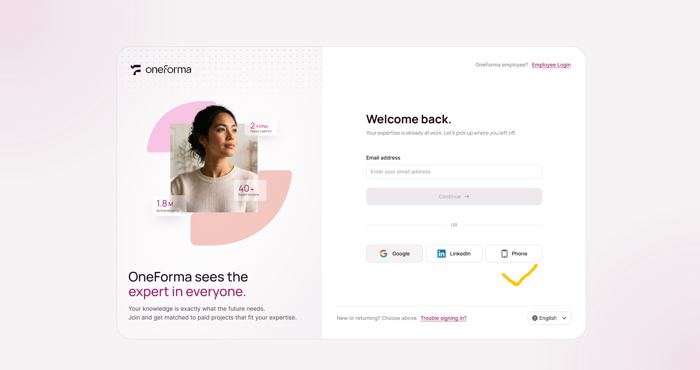
Open the OneForma login page and select the "Phone" login option.
Step 2: Enter Your Phone Number
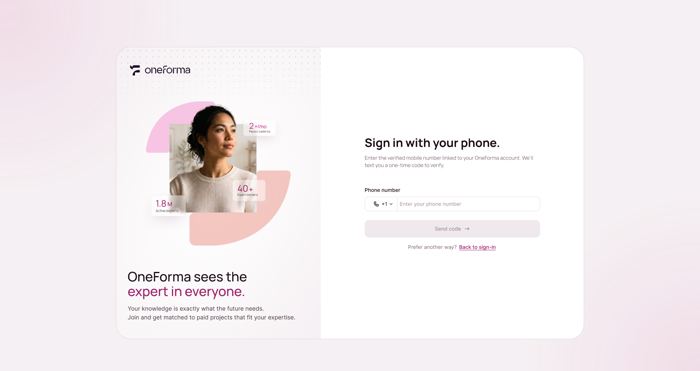
On the "Sign in with your phone" screen, select your country code, enter the verified mobile number linked to your account, and continue.
Step 3: Verify With The Code
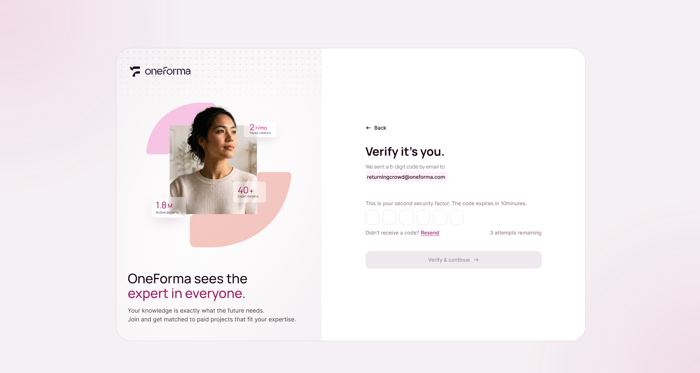
You're taken to the verification screen. Retrieve the 6-digit code sent to your phone and enter it to continue. The code expires in 10 minutes.
Step 4: Enter The Dashboard
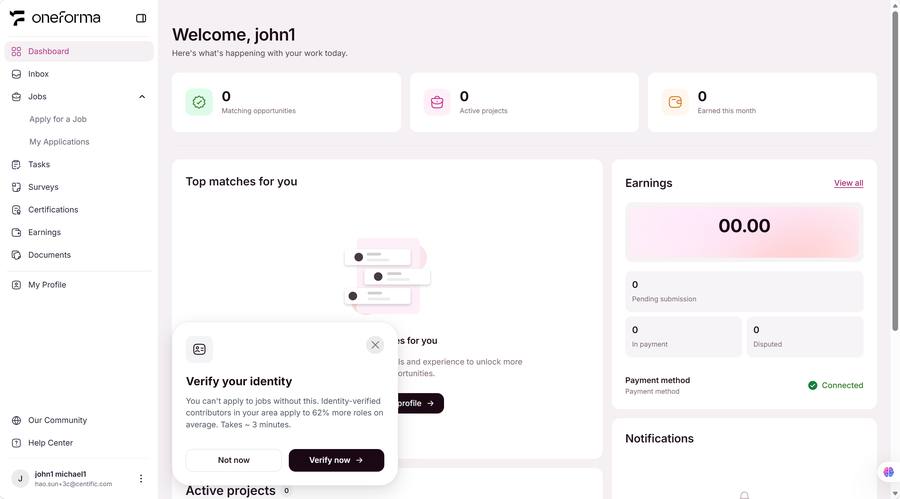
Once the code is verified, you're logged in and taken straight to the Dashboard.
Frequently Asked Questions
Why am I not receiving the code?
Check: 1) the phone number is correct; 2) your spam SMS folder; 3) your network or signal; 4) carrier SMS restrictions. If still not received, click "Resend" or wait a few minutes.
How long until the code expires?
Phone verification codes are valid for 10 minutes. If the code expires, request a new one; the earlier code will no longer work.
Are phone login and email login the same account?
Yes. A verified phone number and email are bound one-to-one.
What happens after 3 wrong attempts?
For security, after 3 consecutive wrong codes you must wait 1 hour before trying again. There is a maximum of 10 code requests per day.
How do I change my bound phone number?
Go to Profile → About → Personal Information, click "Edit", enter the new phone number, and verify it.
My account has a phone number set — why can't I log in with it?
Your account has a phone number, but please make sure it has been verified before using it to log in.