
How To Reset Your OneForma Password
Recover access with a code sent to your registered email address or verified phone number.
If you cannot use your password, start the recovery flow from the OneForma sign-in page. You can receive a verification code by email or, if available on your account, by phone.
Start here: Open the official OneForma sign-in page.
Step 1: Visit Login Center & Click "Trouble Signing In?"
Open the OneForma login page and click the "Trouble signing in?" link to start password recovery.
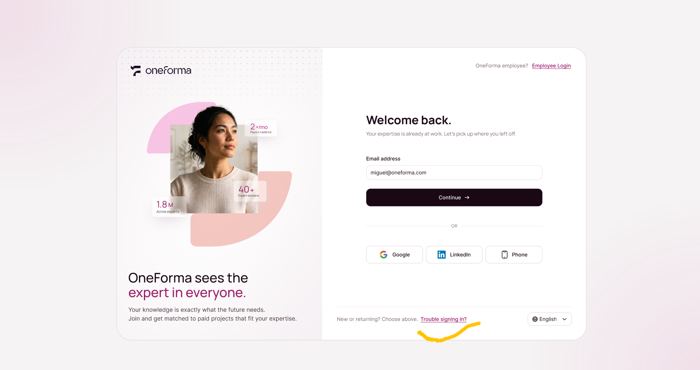
Step 2: Choose Where To Send Your Code
On the "Reset your password" screen, choose Email (default) or Phone (SMS) as your verification method, then continue.
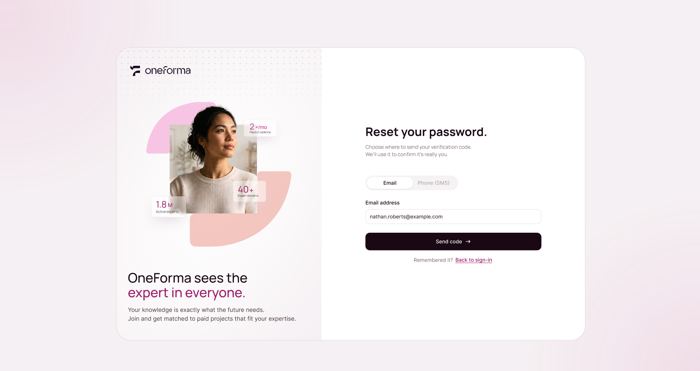
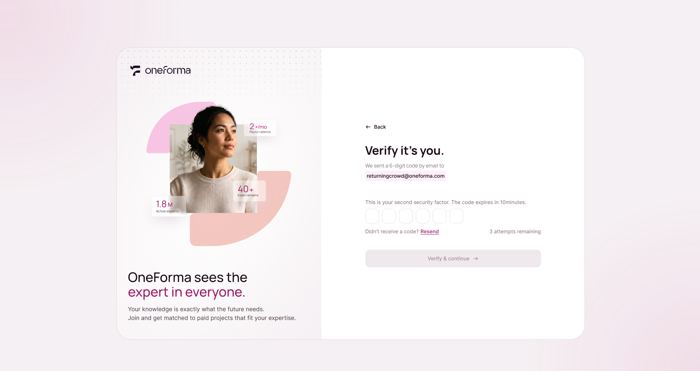
Step 3A: Verify By Email
For email recovery, enter the code sent to your registered email address. Email codes expire after 5 minutes.
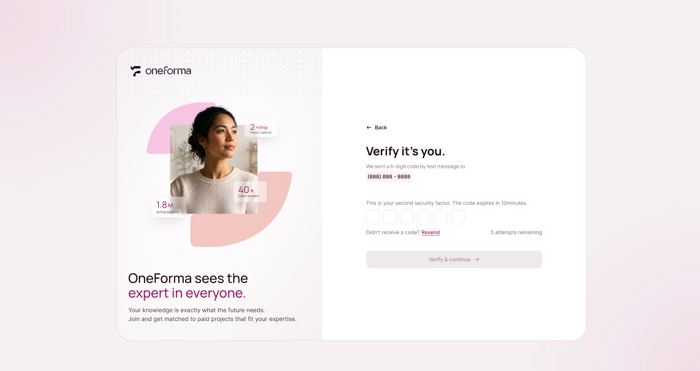
Step 3B: Verify By Phone
For phone recovery, enter the code sent to your verified mobile number. Phone codes expire after 10 minutes.
Step 4: Set A New Password And Continue
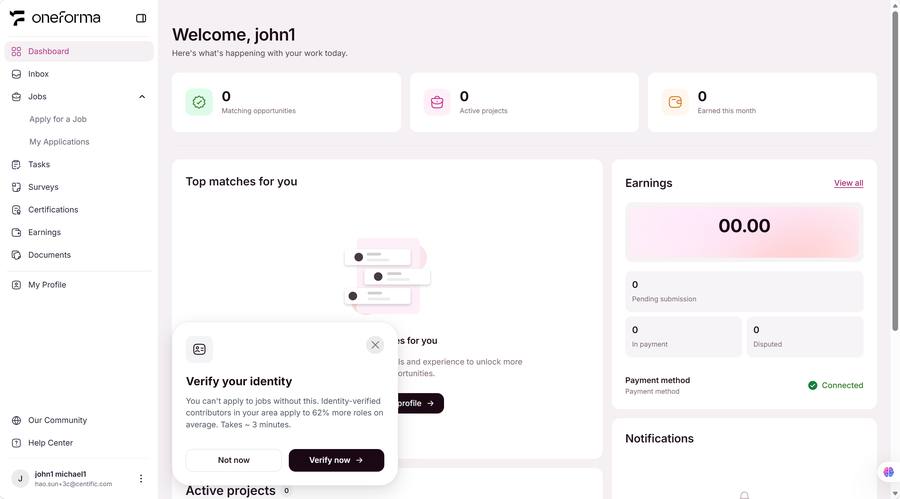
Follow the prompt to set a new password. After verification and reset are complete, OneForma signs you in and opens your dashboard.
Frequently Asked Questions
What if I don't receive the code?
Email: check spam or junk folder and confirm the address is correct and activated. Phone: confirm the number and network are correct, check spam SMS. If the problem persists, request a new code or contact support.
What if my registered email is expired or inaccessible?
If you cannot access your registered email, contact the OneForma support team. Provide your account details and the team will help resolve the issue.
Do I need to re-verify other login methods after a reset?
No. After a password reset, your other bound login methods (SSO, Passkey, phone) remain fully usable without re-verification.