
How To Set Up And Manage Your Profile
Manage personal details, contact information, skills, education, languages, payment settings, work history, and account security.
A complete, accurate profile helps OneForma match you with suitable jobs and gives you a central place to manage security and payment settings.
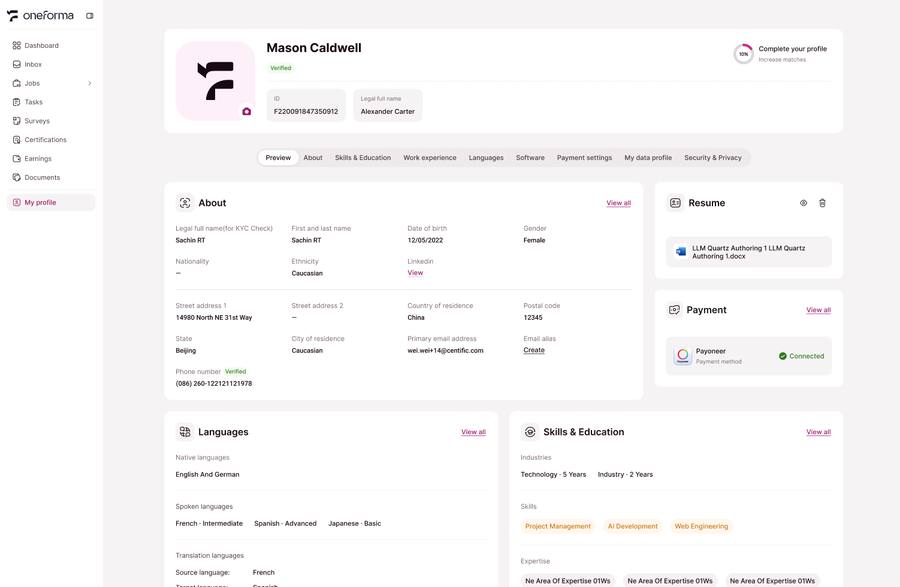
Profile Preview
Key Profile Information Preview
The Preview section at the top of the Profile page displays your key Profile information, including avatar, name, region, language skills, main skill tags, and Profile completeness — helping you quickly understand how your Profile appears overall.
Onboarding Guidance
If you have not completed the Onboarding steps after registration, the Preview section will display a prompt guiding you to complete key Profile information. Click the prompt to enter the Onboarding flow and quickly fill in core information such as country or region and language skills. Once completed, the platform will match and recommend more suitable jobs for you.
Basic Information
Personal Information (Personal Info)
Fill in your name, date of birth, country or region, timezone, and avatar. Your region information directly affects the range of jobs you can apply for — please ensure it is accurate.
Contact Information
Fill in and manage your contact details in About → Contact Information, including phone number and Discord account. After adding a phone number, SMS OTP verification is required. A verified phone number can be used for phone login and account recovery. Modifications also require SMS OTP confirmation.
Identifier (Account Identifier)
This information is the account or ID associated with your account on relevant platforms. It is automatically maintained by the system — no manual input required.
Skills And Education
Skills
Add your professional skill areas (writing, translation, audio, labeling, coding, etc.) and proficiency levels — one of the core factors the system uses for job matching.
Education
Fill in your highest level of education and professional background. For Expert Talent users, your Education Level must be Master's degree or above, and you must upload a valid diploma certificate to validate your Expert Talent status. Education information must be genuine — falsified information will result in account suspension.
Languages
Native Language
Set your native language(s). You can add up to 3. Please note: Native Language cannot be modified or removed once submitted — please fill in accurately before submitting. Native language information is a key factor in translation job matching and directly affects the language jobs the system recommends to you.
Spoken Language
Add languages you can use fluently (other than your native language) and indicate your proficiency level. Spoken Language information, together with Native Language, determines the range of language-related jobs you can participate in.
Translation Language Pair
Set the translation language combinations you can handle (e.g., Chinese → English). Translation jobs are matched based on your configured language pairs — without setting language pairs, you will not be matched to translation jobs. During the Pre-check stage, if the system detects a language match but no language pair is configured, it will ask you to confirm and save the pair before continuing.
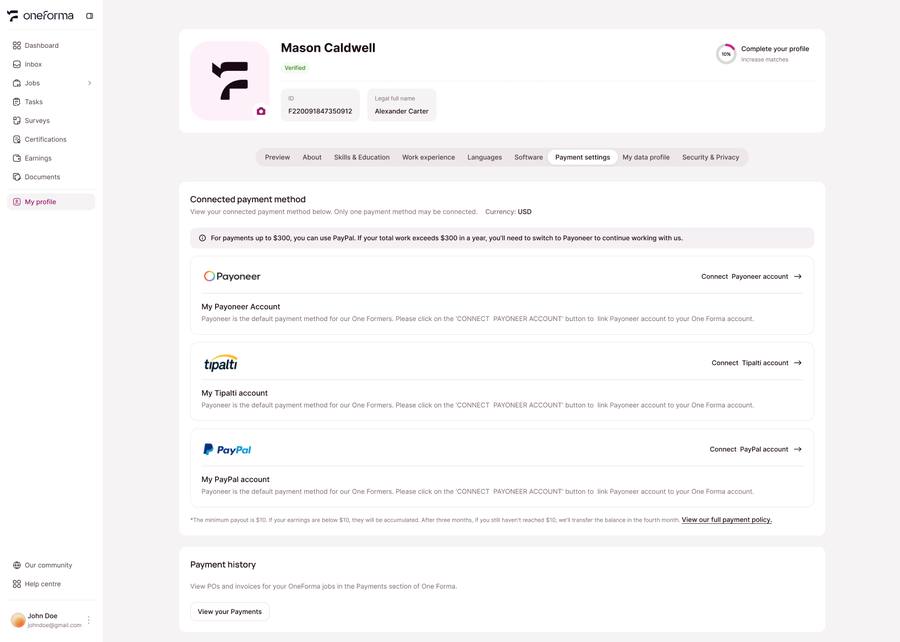
Payment Settings
Payment Method Configuration
Configure your payout account on the Payment Settings page in your Profile. Choose the appropriate payment method based on your country or Legal Entity: China users only support Bank Transfer; global users support Payoneer, PayPal, and Tipalti.
Connected Status
After configuring your payment account, it must reach Connected status to be considered fully configured, allowing earnings to be paid out normally. Please complete configuration before starting work to avoid delays.
Other Profile Sections
Work Experience
Fill in your work history, including company name, job title, tenure, and main responsibilities. Complete work experience helps the system more accurately assess your professional background and improves matching with advanced jobs.
Software
Add software tools you are proficient in (e.g., Adobe Photoshop, Final Cut Pro, Microsoft Office) and your proficiency level. Software skills help match you with professional jobs that require specific tools.
My Data Profile
Fill in demographic and device usage information such as age range, device type, and usage habits. This information is used to match you with data collection projects that have specific audience requirements — the more complete the information, the more project types you can be matched with.
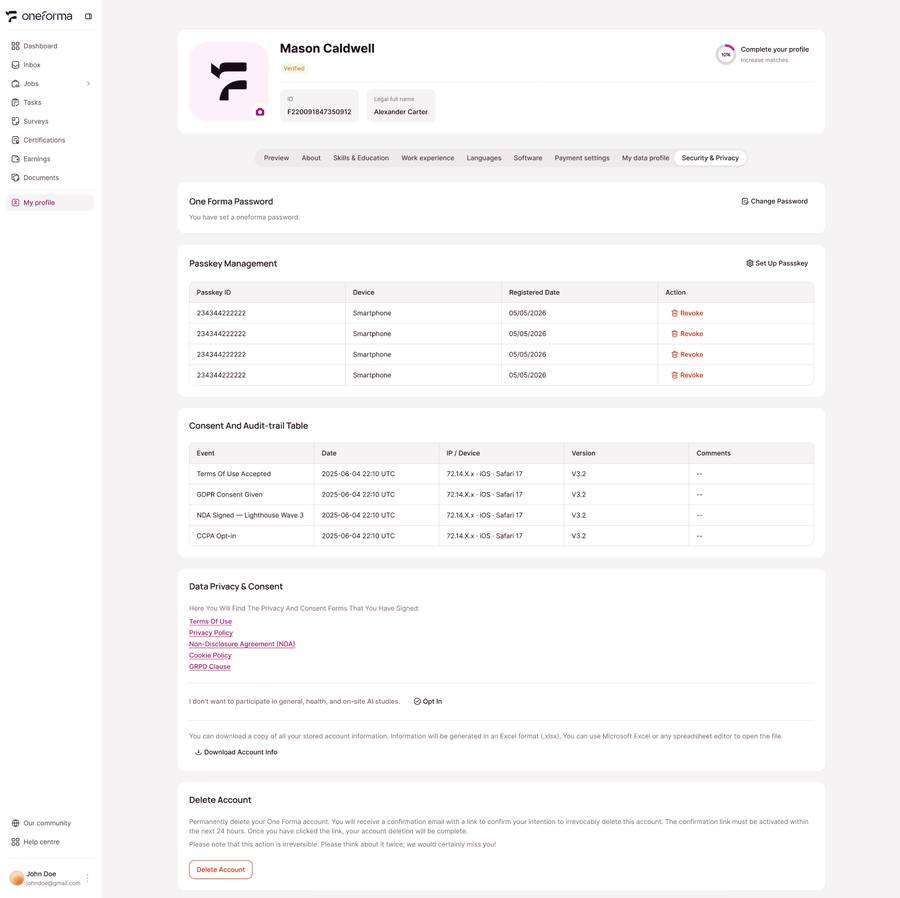
Security And Privacy
Change Password
On the Security page, click Change Password, enter your current password, then set a new password (must include uppercase and lowercase letters, numbers, and special characters).
Passkey Management
In Security → Passkey section, add or remove Passkeys. Click Add a Passkey to complete biometric registration on the device; click Delete to remove the Passkey for a specific device (after removal, that device must use another login method).
SSO Binding Management
In Security → SSO Bindings, view your linked Google account. Click Unbind to remove the link. Removal will not affect other login methods (password, Passkey, or phone number).
Signed Agreements
On the Security & Privacy page, you can view all platform terms and agreements you have signed, including Terms of Service, Privacy Policy, NDA, etc., for easy reference of content and signing dates.
Delete Account
You can delete an account you no longer use through this feature. After submitting a deletion request, a 30-day grace period begins during which you can cancel the deletion at any time. After 30 days, the account and all related data will be permanently deleted — deletion is irreversible. Please proceed with caution.
Check before saving: Some fields, including country of residence, date of birth, and native language, may require support to change after submission.
Frequently Asked Questions
Can I change my personal information freely?
Most personal information can be modified as needed. However, some fields such as country of residence, date of birth, and Native Language cannot be changed once submitted — please verify accuracy before submitting.
How do I change my country of residence if it has changed?
Your country of residence may affect your payment method and currency, so to change it, please contact support through the Help Center support team. Self-modification is not supported.
How do I add or remove a Passkey?
Go to Profile → Security & Privacy → Passkey section. Click Add a Passkey and complete biometric registration on the current device; to delete, click the Delete button next to the device. After deletion, that device must use another login method.
How do I unlink my Google account?
Go to Profile → Security & Privacy → SSO Bindings and click Unbindnext to the relevant service. Removal will not affect other login methods (password, Passkey, or phone number).
Does Profile completeness affect job matching?
Significantly. The system uses skills, languages, certifications, region, and Profile completeness for job matching. The higher your completeness, the more Invited job recommendations you receive.
How do I change my linked phone number?
Go to Profile → About → Contact Information and click Edit, enter the new phone number and verify via SMS OTP to complete the change. The new number takes effect immediately after verification.