
How To Create A OneForma Account
Create your account, verify your email, set up an optional secure sign-in method, and accept the required agreements.
Follow these steps to create a new OneForma account. Use an email address you can access, because OneForma sends a one-time verification code during sign-up.
Start here: Open the official OneForma sign-in page.
Step 1: Enter A New Email To Start Sign-Up
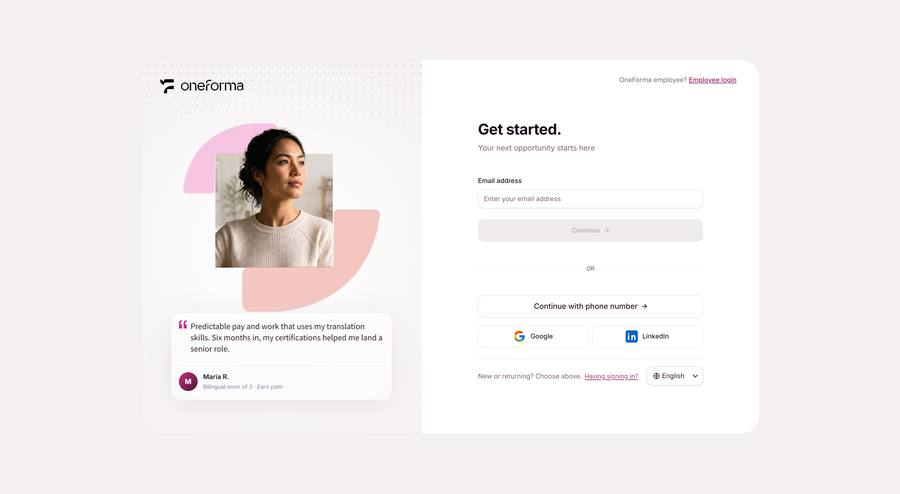
Open the OneForma Login Center page, enter an unregistered email in the email field, and click "Continue". The system detects the email is new and starts the sign-up flow.
Step 2: Fill In Basic Info & Password
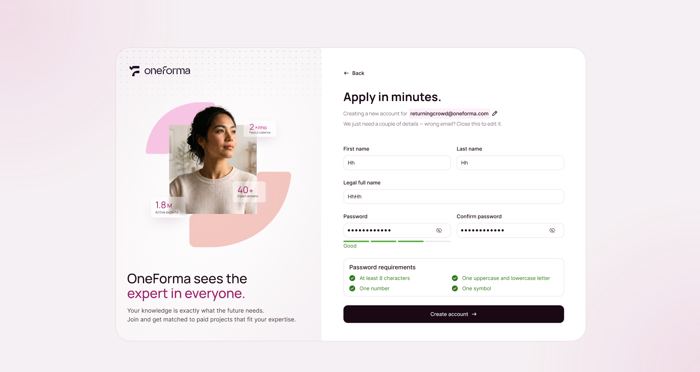
On the sign-up form, enter your first name, last name, and set a password. The password must contain uppercase and lowercase letters, numbers, and a symbol. Confirm the password and click "Create account".
Step 3: Email OTP Verification
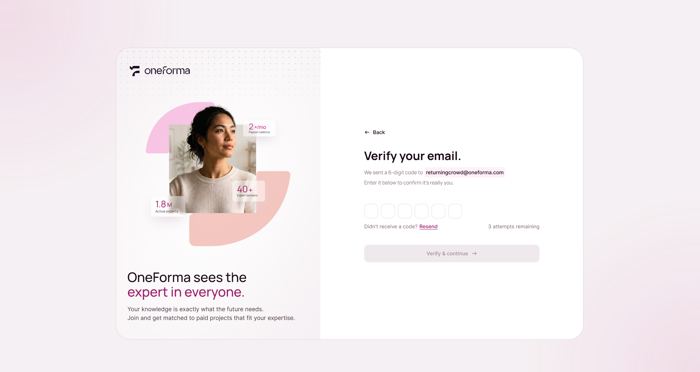
The system sends a verification email to your address. Enter the 6-digit OTP code from the email on the "Verify your email" screen. The code expires in 5 minutes; once verified you proceed automatically. Email verification is complete and your OneForma account has been created. You will be prompted to set up a Passkey or bind a phone number.
Step 4: Add A Secure Sign-In Method (Optional)
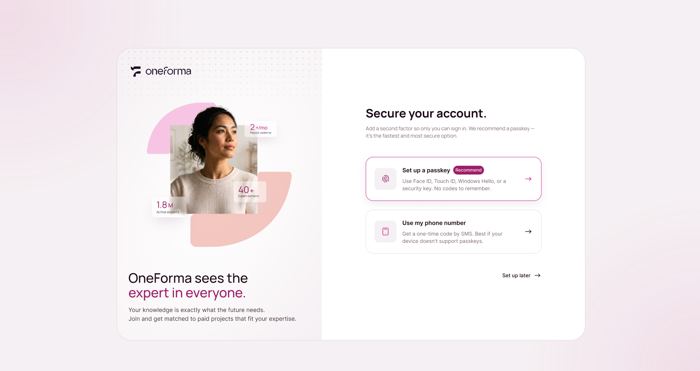
The system prompts you to set up a Passkey (using biometrics) or bind a phone number (for phone login). You may set one, both, or skip by clicking "Skip later".
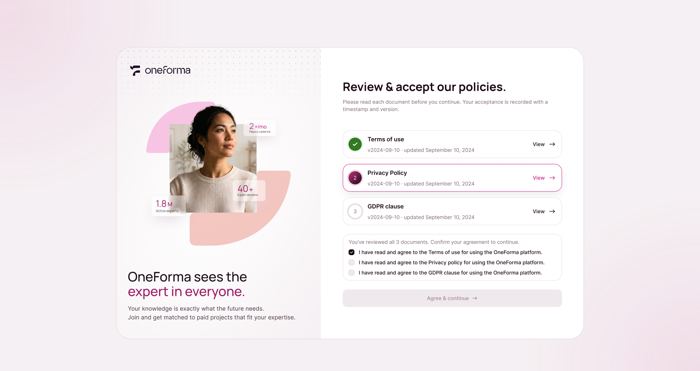
Step 5: Review And Accept The Agreements
Read and agree to the Terms of Service and Privacy Policy. After confirming your agreement, click "Finish" to complete sign-up. You can log in and use the OneForma platform right away.
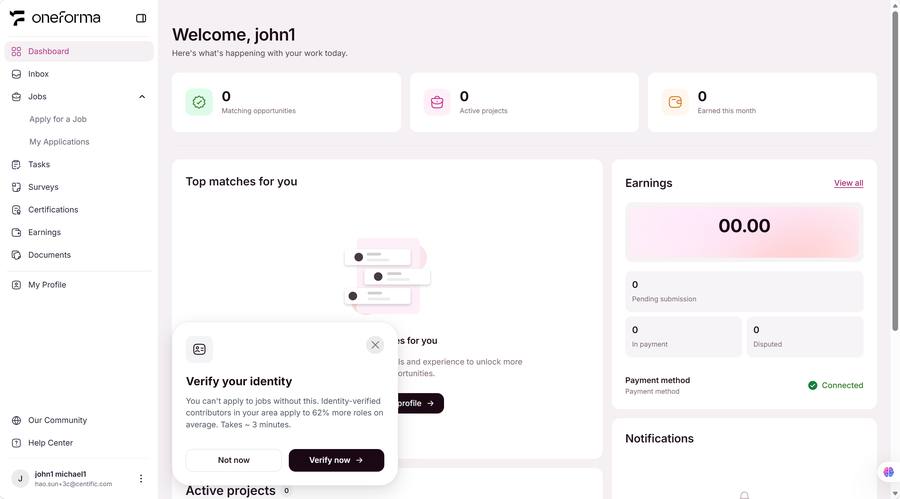
Step 6: Open Your Dashboard
After sign-up is complete, OneForma takes you to your dashboard. Finish any remaining profile, identity, or payment steps shown under Next Steps.
Frequently Asked Questions
What happens if I enter an already registered email?
If the email is already registered, the system notifies you and guides you to the login flow or password recovery.
How do I choose a secure password?
Use at least 10 characters and include uppercase and lowercase letters, a number, and a symbol. Avoid common words, repeated characters, and personal information.
How do I get the email verification OTP code?
After creating your account, the system automatically sends a verification email. Enter the 6-digit OTP code on the "Verify your email" screen. Emails usually arrive within 1-2 minutes.
What if I don't receive the verification email?
Check your spam or junk folder and make sure the email address is correct. If it still hasn't arrived, click "Resend in 49s" on the verification screen and a new email will be sent.
What happens if I enter the wrong OTP code?
The system shows an error and you can retry. After 3 consecutive wrong attempts, you must wait 20 minutes before trying again.
What if the OTP code has expired?
The OTP code expires in 5 minutes. Click "Resend" to get a new code; the old code becomes invalid.
Must I set up a Passkey or phone number after sign-up?
Not necessarily. Both are optional. You can proceed to sign the agreements without setting them up, and add them later in account settings.
Can I set up both a Passkey and a phone number?
Yes. You can complete them later in your Profile. We recommend setting up at least one so you have a backup login method.
Can I finish sign-up without agreeing to the terms?
No. Agreeing to the Terms of Service and Privacy Policy is required to complete sign-up. You must review and confirm all terms before clicking "Finish".