
How To Complete Your Identity Verification On OneForma (Steps & FAQs)
Trying to complete identity verification? Don’t worry — completing your Identity Verification on OneForma is quick and easy! Some jobs need this step to keep our platform safe and ensure every applicant is properly verified. You’ll just need to upload a few valid documents through our secure verification partner, Persona.
This guide will walk you through everything you need to know — why identity is required, what documents you’ll need, and how to complete the verification smoothly so you can start applying to eligible jobs without any hassle.
What Is Identity Verification?
Identity Verification is a standard verification process that adds an extra layer of safety to the platform by confirming your identity before you access certain services or apply for specific jobs. It ensures that the person creating the account, or applying for the project, is really you.
Think of it like showing your ID at the entrance of a secure building: it’s a quick check that helps prevent fraud, identity misuse, and other risks, keeping both you and the platform protected.
Need Help Completing Your Identity Verification On OneForma?
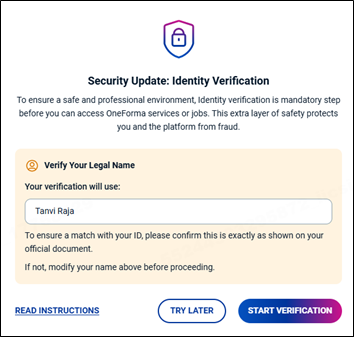
All jobs require you to complete a mandatory Identity Verification. Once completed, it is not required again for jobs and remain valid for 18 months. If you have not started, have started but not completed the process, or if your identity verification has expired after 18 months, a pop-up message will prompt you to complete it.
Click Read Instructions to view the help document related to the process. To skip for now, click Try Later. To begin, click Start Verification.
Note: If you have not defined legal full name during onboarding or through your profile, this field will show in the pop-up window. Make sure you add the exact full name as per your government ID or else your identity verification will fail. If you have already defined the legal name, the legal name input field will no longer be displayed in the reminder pop-up window.
There are two ways to complete Identity Verification:
1) From your Profile
2) From a Job Application
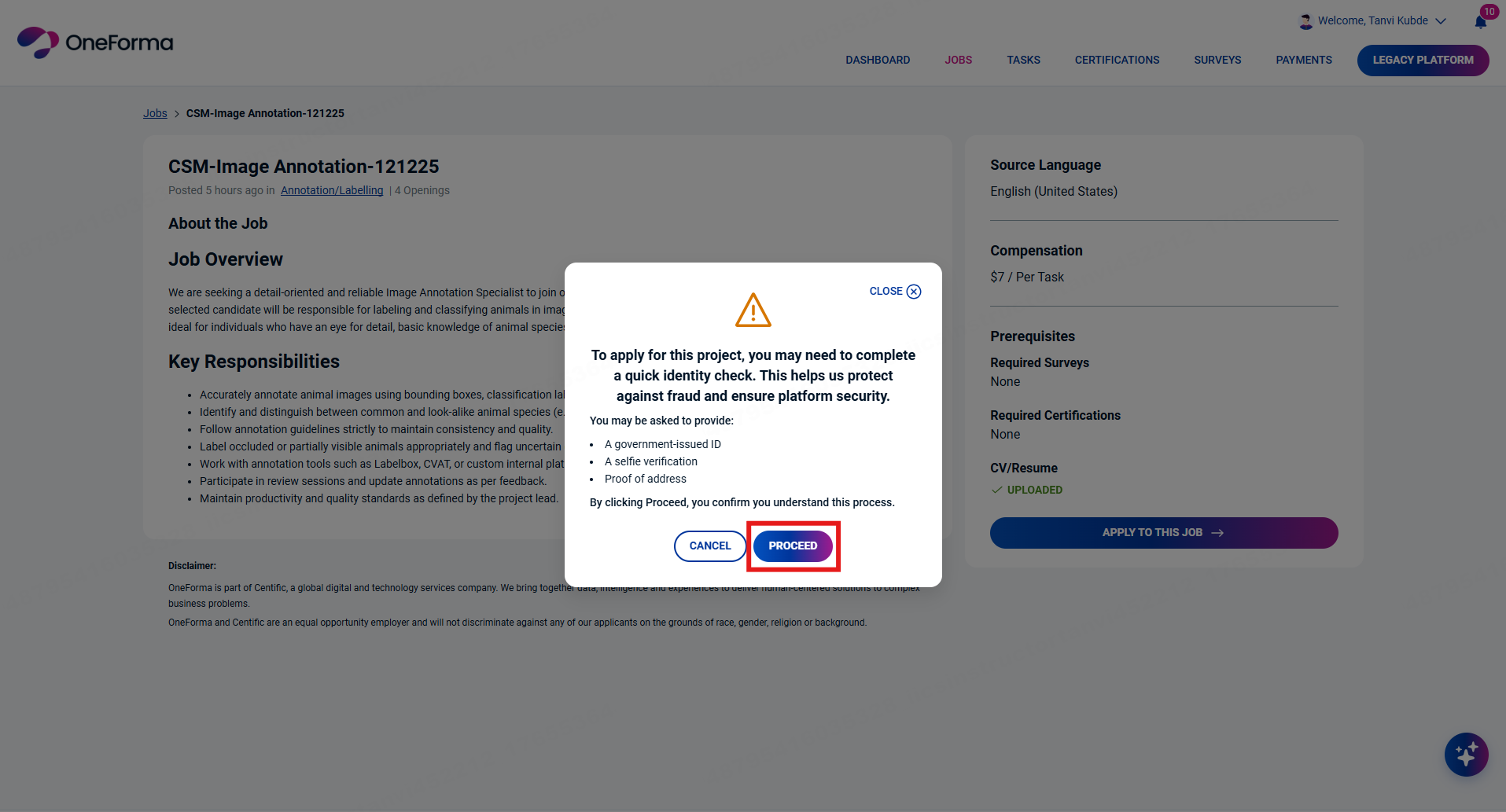
For both cases, the steps are the same and you will be required to provide the following:
- A government-issued ID
- Selfie verification
- Proof of address
From Your Profile
If you complete Identity Verification from your Profile section, you can directly apply for any job that requires it, as your verification status is already updated.
- On OneForma homepage, if you see a pop-up window, check if the Legal Name field appears. Enter your correct legal name as per your government ID, then click Start Verification or click the user profile drop-down menu.
- Select View Profile.
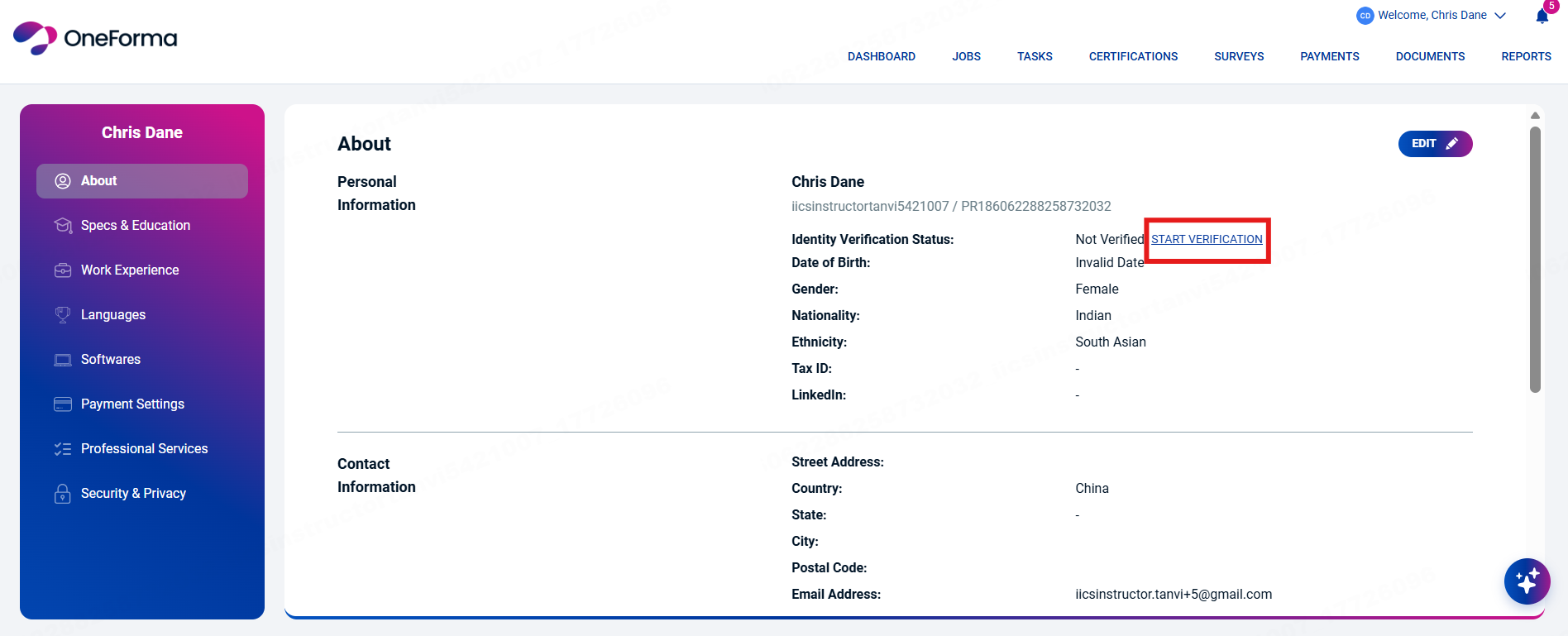
- From the left navigation menu, select the About section.
- Locate the Identity Verification Status field. If your identity verification is not completed, click Start Verification to begin.
From A Job Application
- Go to Jobs in the top navigation menu.
- Click Learn More to apply to a desired job.
- Click Apply to This Job.
Steps To Complete Identity Verification
Verify Government Issued ID
- Click Proceed.
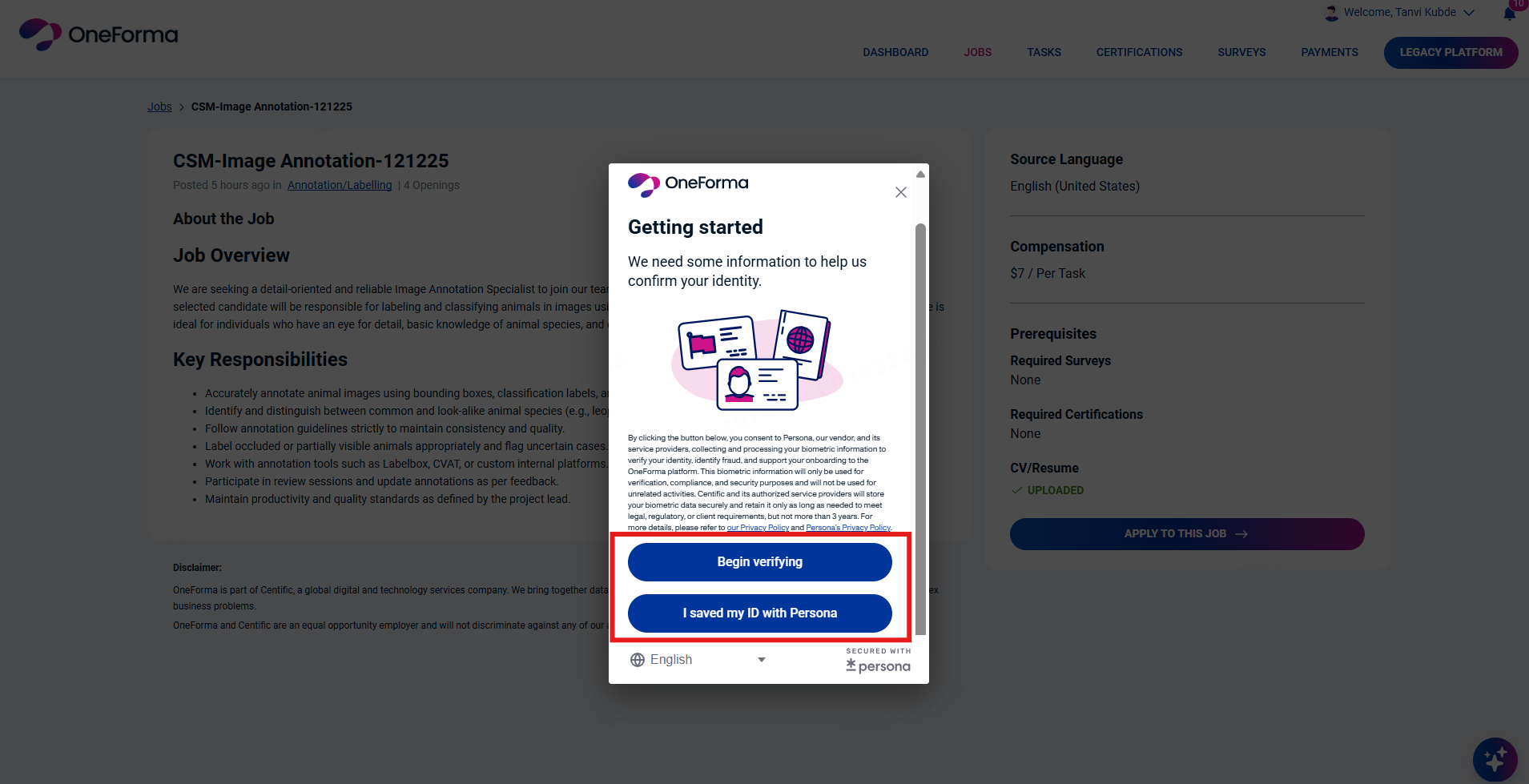
- To verify yourself, choose from the following options:
- If you have already saved your ID with Persona, click I Saved My ID with Persona. You will be redirected to Persona’s website, where you must click Share Reusable Persona.
- If you have not saved your ID, click Begin Verifying.
- Select the country that issued your government ID from the drop-down list.
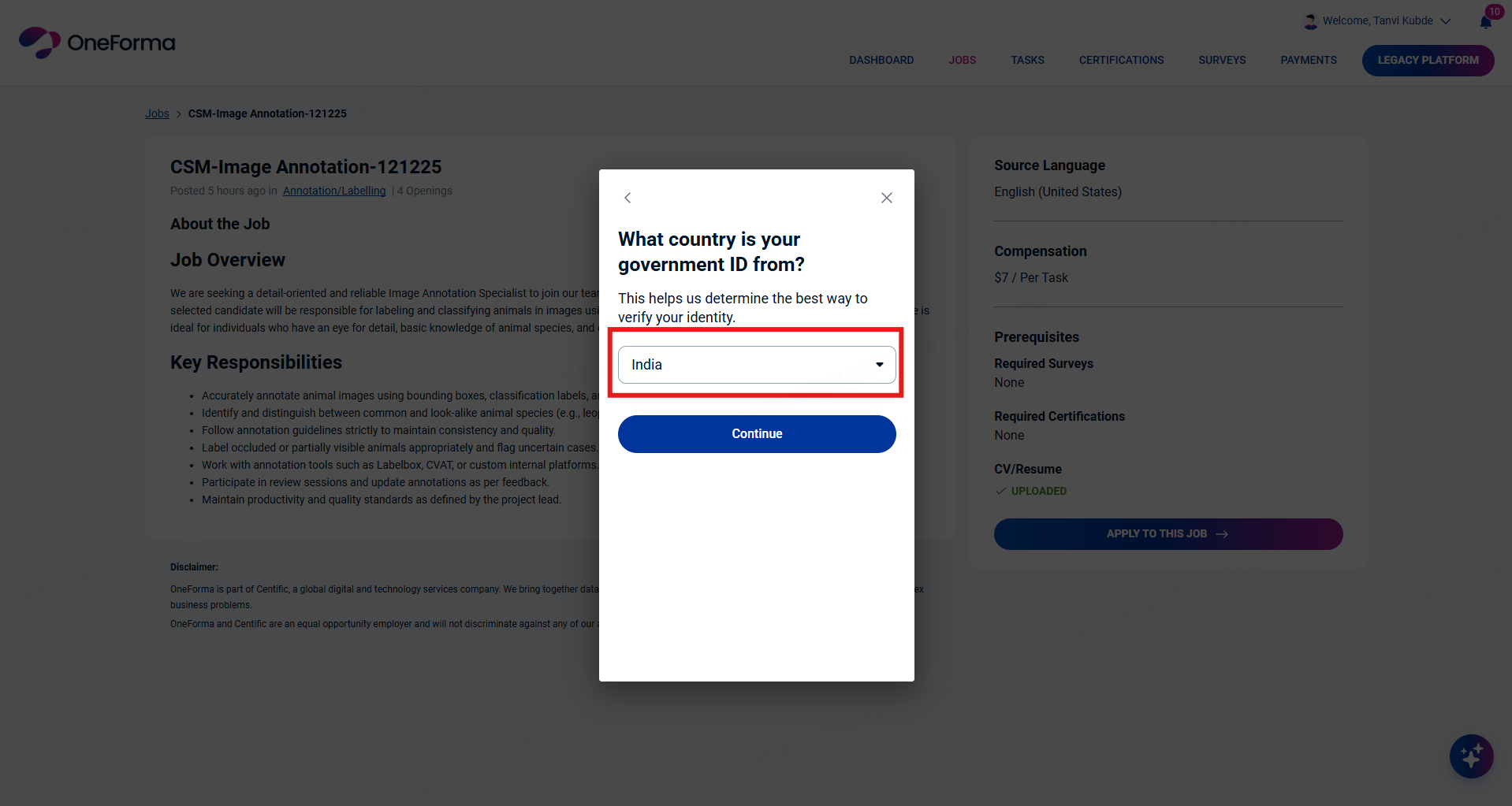
- For your selected country, choose the type of government ID you want to use for verification.
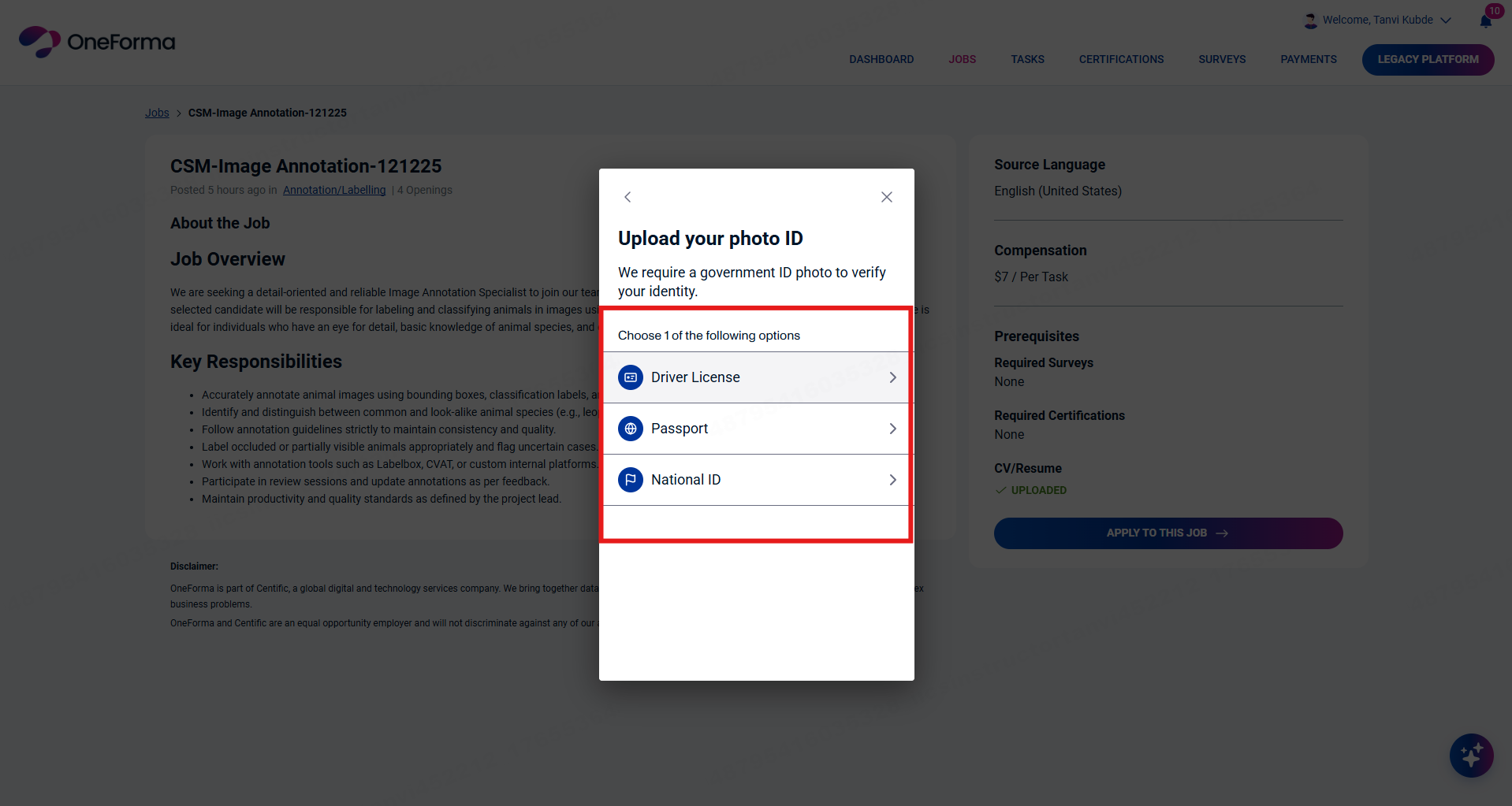
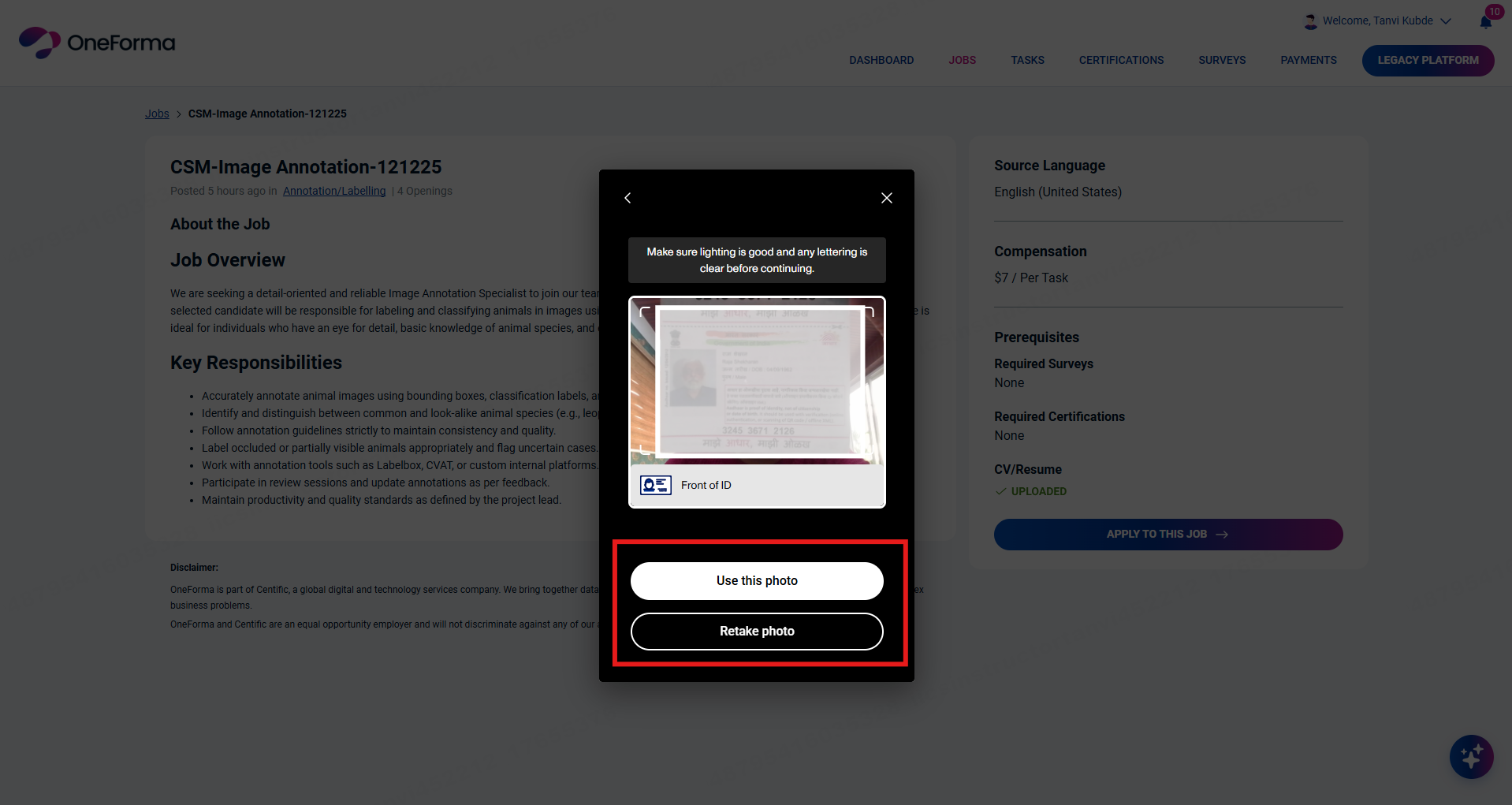
- Take a clear picture of the identity document using your PC/Laptop camera. Click Camera icon to proceed.

- Click Take Photo, then either:
- Click Use This Photo to proceed.
- If the image isn’t captured properly, click Retake Photo to capture the image again.
Note: You can also continue with identity verification on a different device. Use a smartphone with good camera capabilities for better images and to quicken the verification process. - Click Continue on Another Device.
- Scan the displayed QR code or click Send Email.
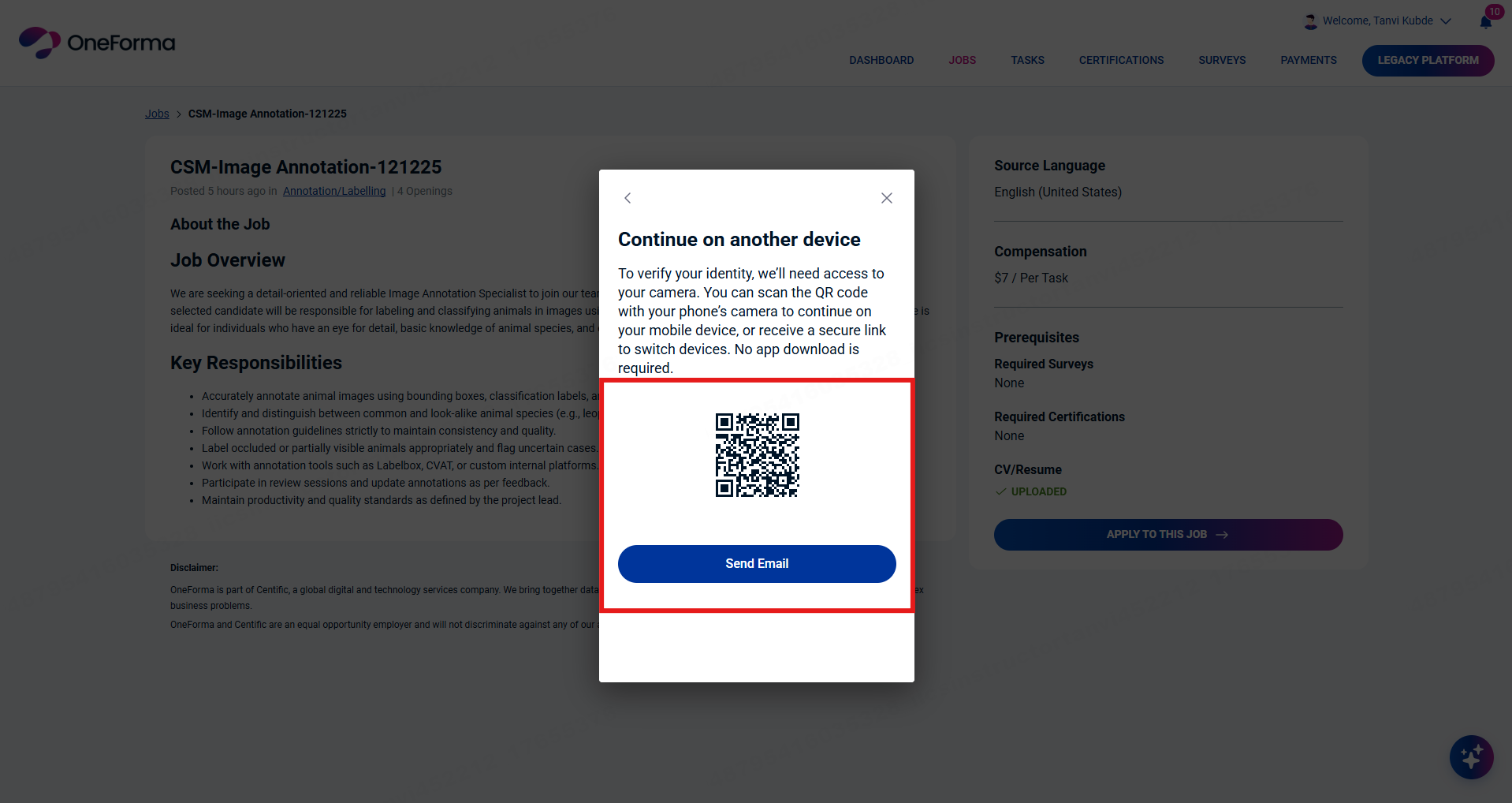
- Enter your email address and click Send Secure Link.
- Click the link from your other device and take a clear picture of the ID document.
Verify Via Live Selfie
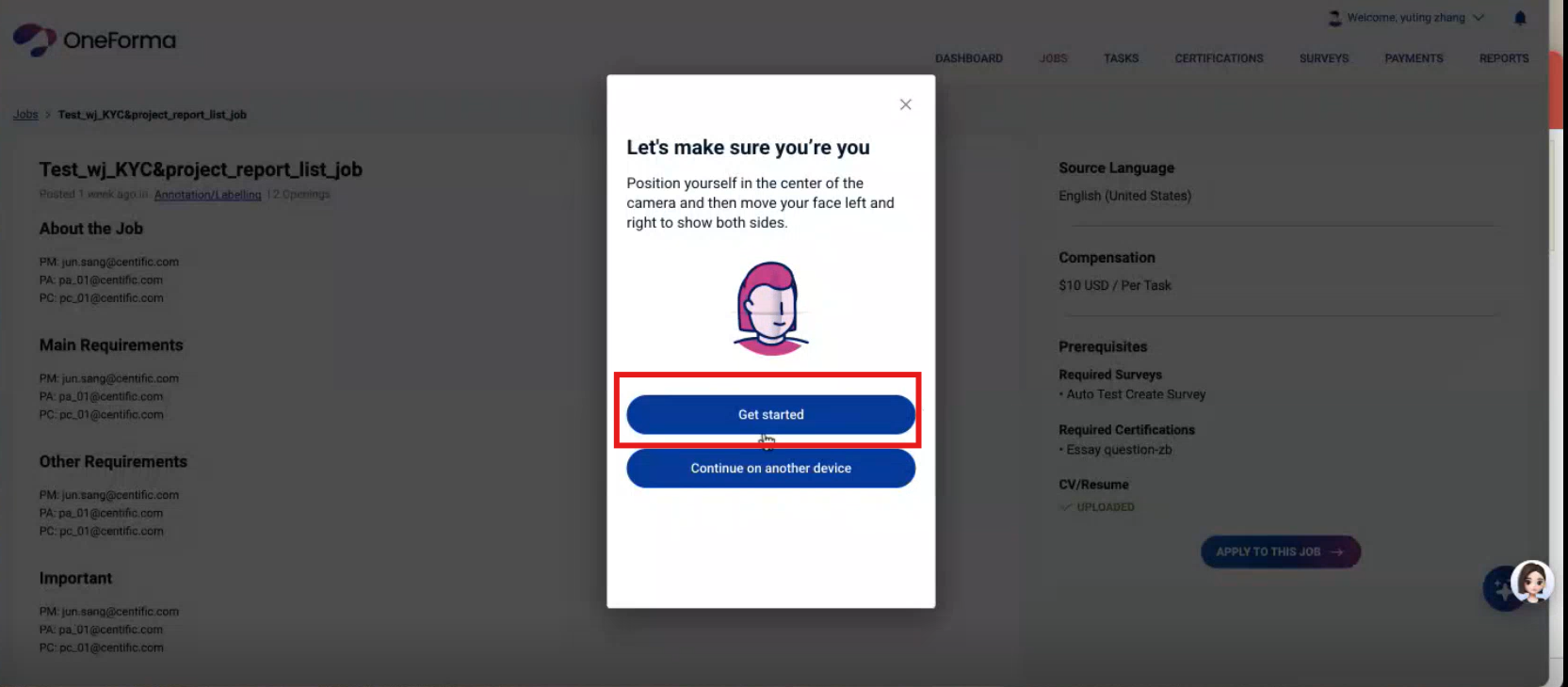
If your ID document passes verification, the next step is Selfie Verification.
- Click Get Started to proceed.
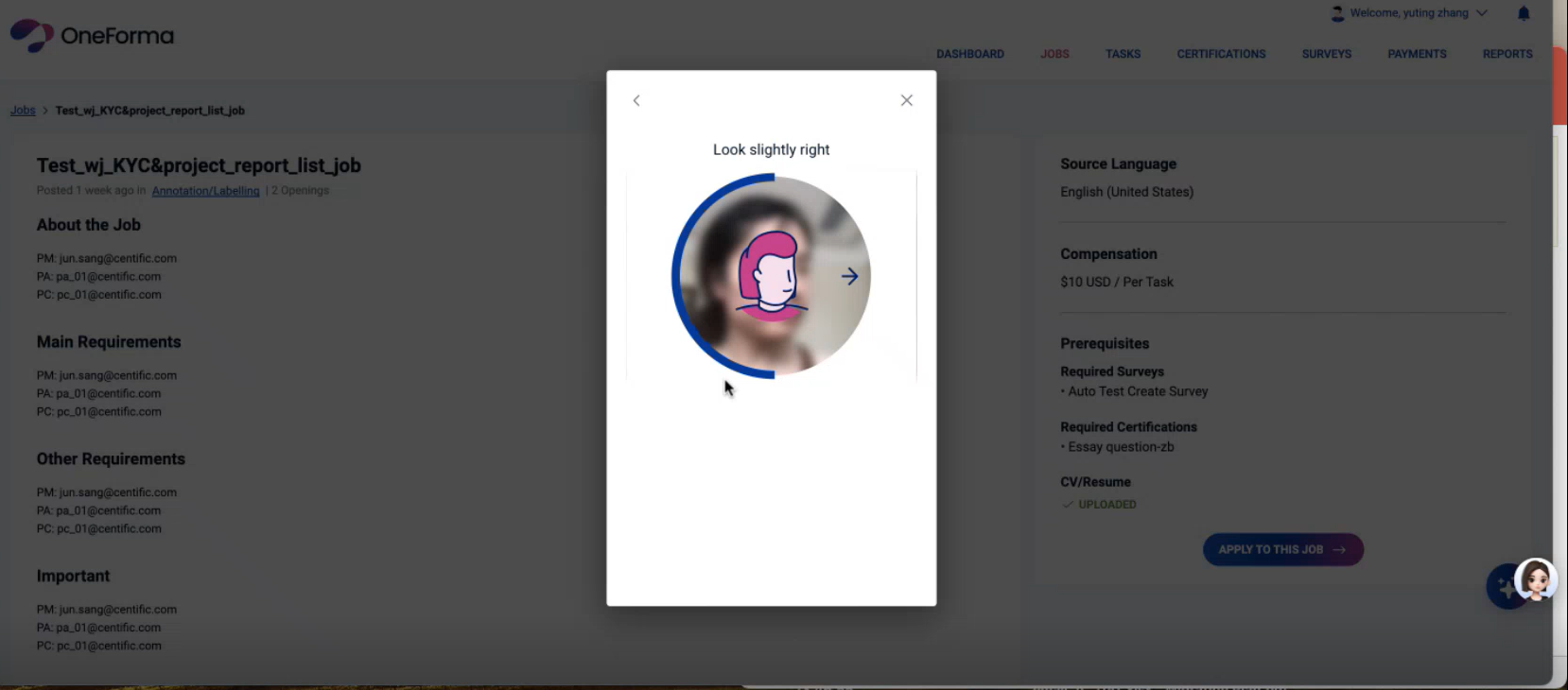
- Follow the on-screen prompts to provide your face profile.
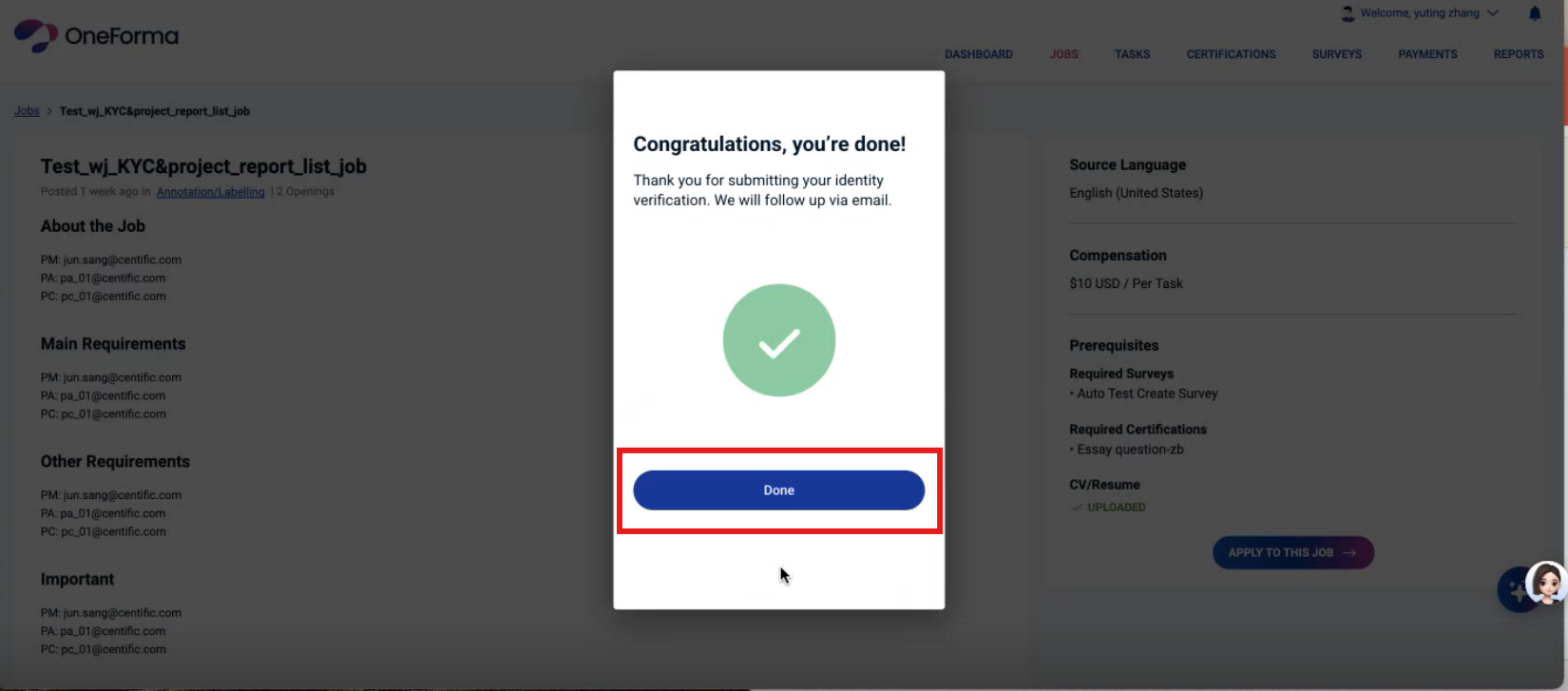
- After successful verification, an Identity Verification Success message appears.
- Click Done to complete the process.
Complete Identity Verification
Click Apply to this Job to proceed with the job application process or if you completed it from your profile section, then the status will be updated, and you can directly apply for the job.
Note:
- If you have completed Identity Verification once, you do not need to do it again for another job that requires it.
- If you fail the Identity Verification, you cannot proceed with the job application.
- You can check the status of your Identity Verification in your profile. Click View Profile and check the Identity field to see your Identity Verification status.
Have Questions About Identity Verification?
Is Identity Verification Mandatory To Apply For Jobs?
Yes, it is for some jobs. Some OneForma jobs require you to complete your Identity Verification before you can apply. If your Identity Verification isn’t done, you won’t be able to submit your application for those jobs.
What Documents Are Accepted For Identity Verification?
You’ll need to upload clear, valid documents to confirm your identity. This includes government-issued IDs like:
- Your passport
- National ID card
- Driver’s license
The exact documents may vary depending on the country you select, but don’t worry — you’ll see the specific requirements when you start your Identity Verification.
What Should I Do If My Identity Verification Failed?
If your Identity Verification fails, it’s usually due to one of these issues:
- Blurry, unclear, or low-resolution images
- Expired or damaged documents
- Incomplete or cropped document uploads
- Wrong document images uploaded against the selected document type
Make sure all the above are correct and click Retry. You can also click Continue on Other Device, with a better camera resolution. Scan the displayed QR code or click Send Email. Enter your email address and click Send Secure Link. Click the link from your other device and take a clear picture of the ID document.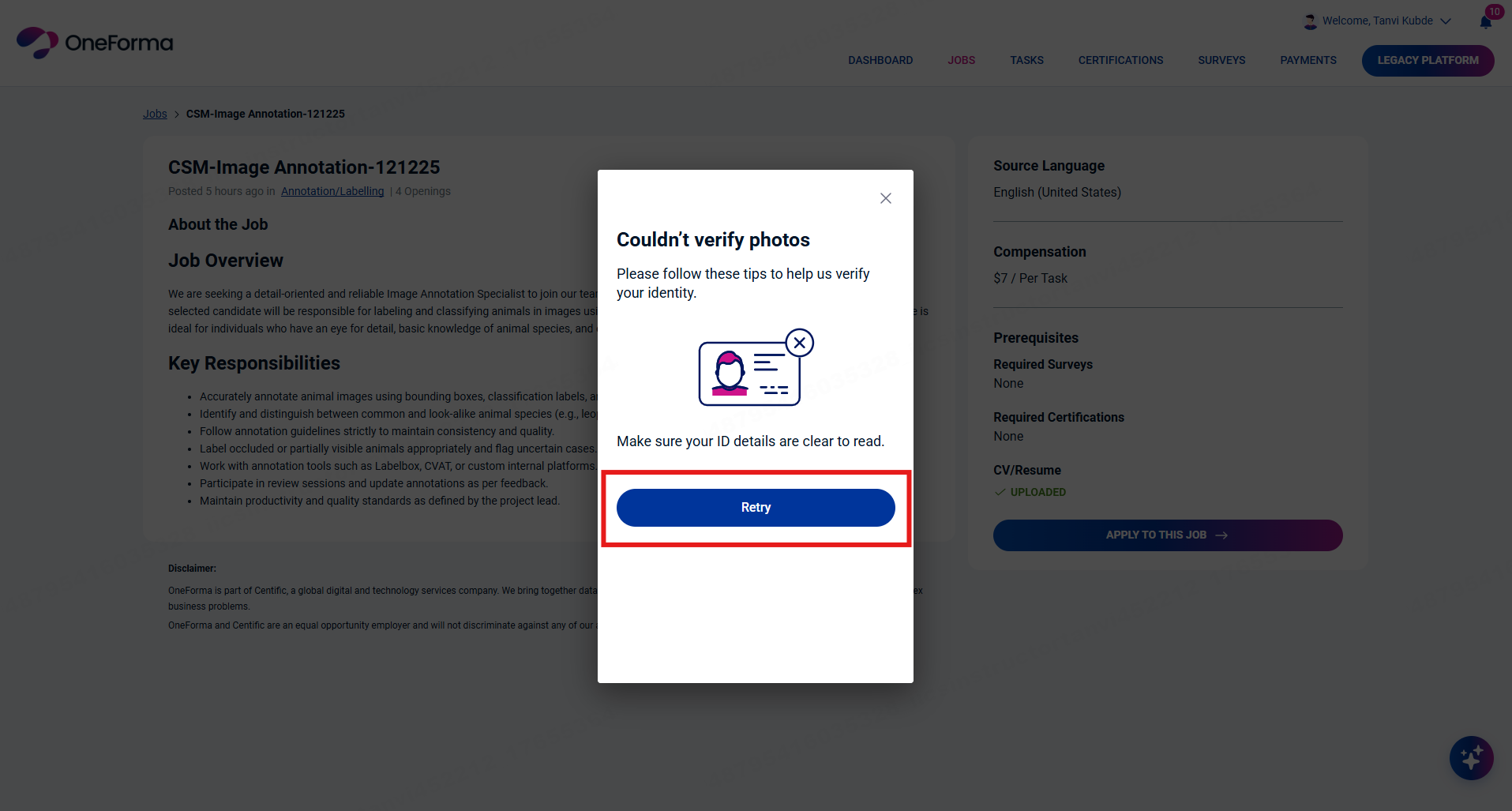
What Should I Do If My Identity Verification Is Rejected?
If your Identity Verification is rejected, it’s usually due to one of these issues:
- The ID looks fraudulent or cannot be verified
- The details on your ID don’t match the information on your OneForma account
- There were multiple failed verification attempts
If this happens, you won’t be able to try the Identity Verification process again or apply for jobs that require it. The best next step is to reach out to [email protected], and they’ll guide you on what to do.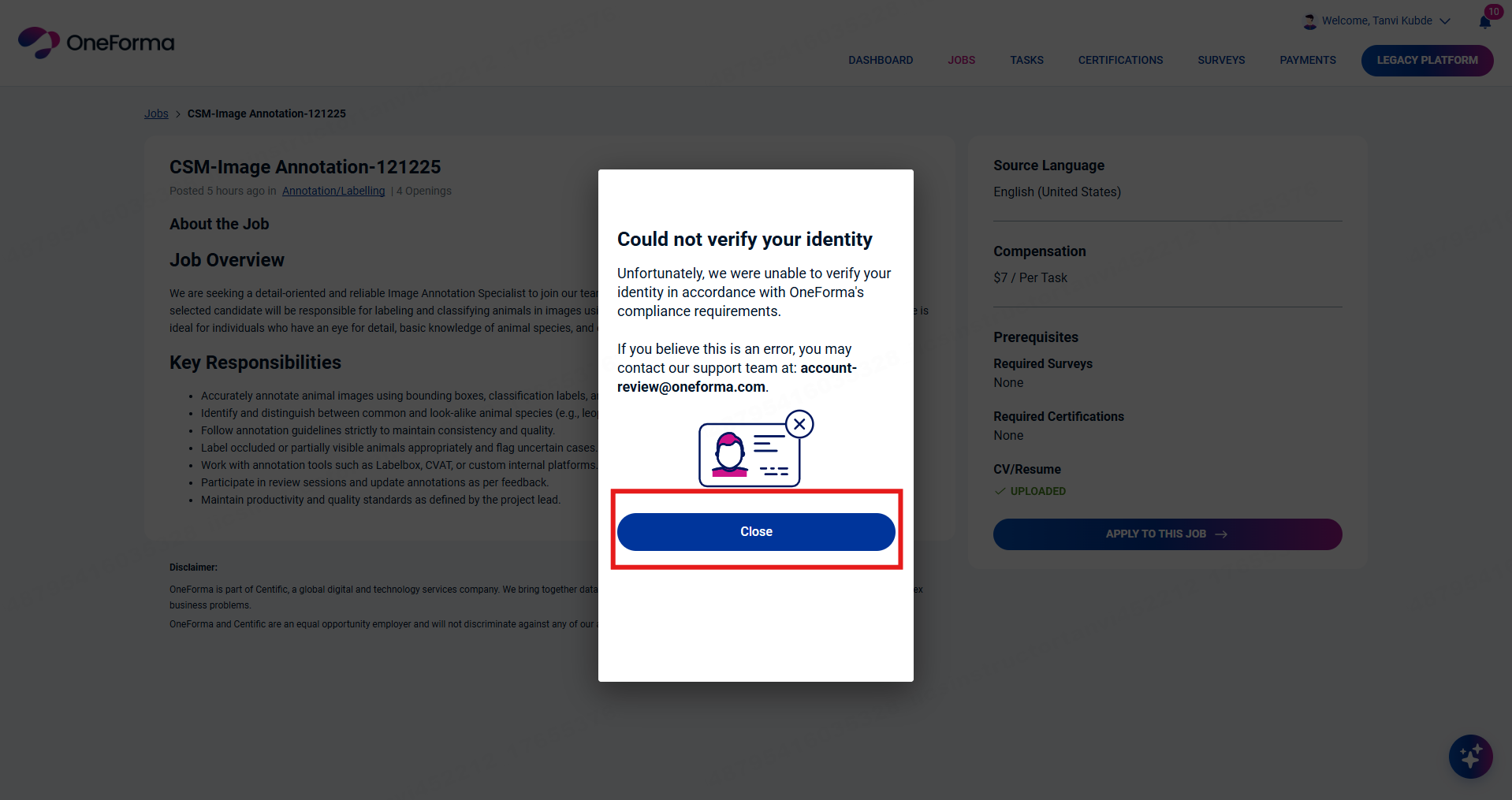
How Do I Update My First And Last Name On OneForma To Match My ID?
If the name on your OneForma profile doesn’t match the name on your ID, just reach out to [email protected]. They’ll help you update your details, so your profile matches your official documents before you complete your Identity Verification.
What Happens If I Don’t Complete Identity Verification?
If you skip the Identity Verification process, you won’t be able to apply for projects that require it. These jobs are only open to verified users, so completing your Identity Verification is an important step to stay eligible and access those opportunities on OneForma.
How Long Does Identity Verification Take?
Identity Verification usually takes just a few minutes. Once you submit your documents, you’ll get an approval or a rejection almost immediately, so you can move forward without waiting.
Is My Personal Information Safe During Identity Verification?
Yes — your information is safe. All the documents and details you upload are protected and handled securely. They’re only used for verifying your identity and meeting platform requirements, and nothing else.