
How To Dispute A PO
Spotted something wrong with a PO before you submit its invoice? No problem, that’s exactly what the dispute process is for. Here’s how to raise a dispute and what happens next.
Step 1: Start The Dispute
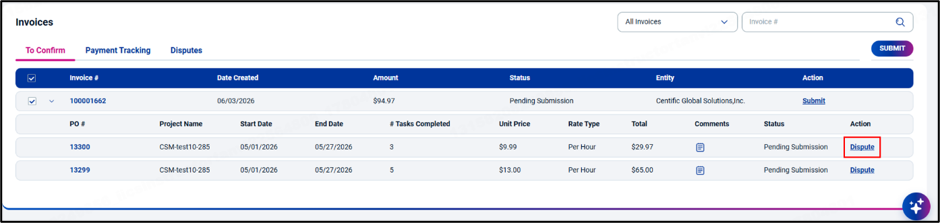
To raise a dispute for a specific PO, click “Dispute” under the “Actions” column.
Step 2: Enter Your Dispute Reason
Enter your dispute reason, then click “Submit Dispute”.
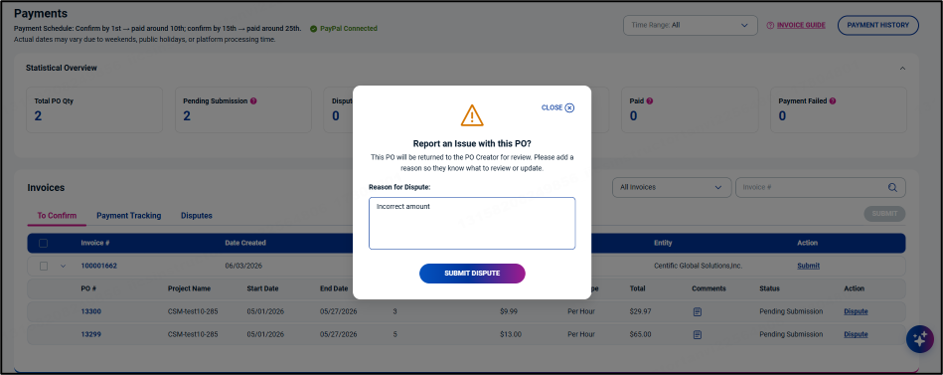
Once submitted, the disputed invoice moves to the “Disputes” list, where you can keep an eye on it.
What Happens After You Submit A Dispute?
When you raise a dispute, the PO goes back to the PO Creator for correction and must complete the internal approval workflow again. Here’s what to keep in mind while you wait:
- The PO Creator needs to correct and resubmit the PO before it can move forward.
- Once the corrected PO returns after internal approval, it’s flagged so you can easily distinguish it from new POs.
- If you don’t confirm an invoice before the deadline in the invoice auto-generation schedule, the system automatically confirms it and assigns it to the corresponding payment batch.
Need More Help?
If you’re facing difficulties with a dispute, don’t worry, we understand how important it is to get this right. Reach out to OneForma Support, and we’ll get back to you as soon as possible.