
How To Use Your Dashboard And Inbox
Understand job matches, active projects, earnings, Next Steps, platform navigation, and read-only Inbox messages.
Your dashboard brings together recommended jobs, active projects, current earnings, notifications, and the setup actions that can improve your access to work.
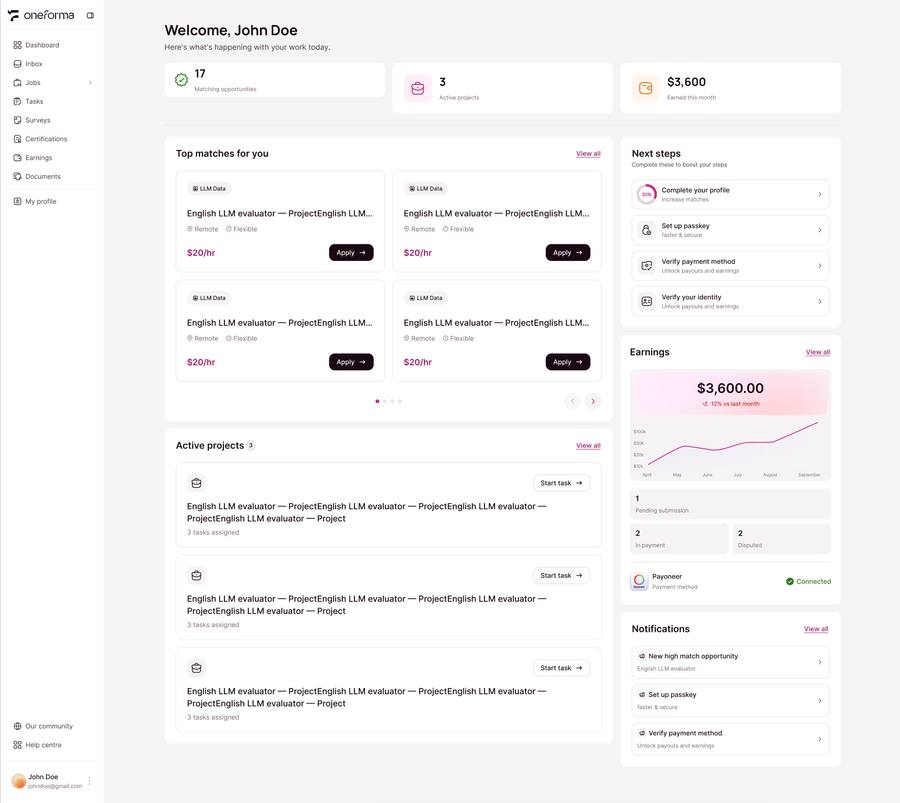
Navigate The Platform
Left Sidebar Navigation
All core platform features are accessed through the fixed left sidebar, including Dashboard, Inbox, Jobs (Apply for a Job and My Applications), Tasks, Surveys, Certifications, Earnings, Documents, and My Profile. Click any menu item to navigate.
Bottom Fixed Area
The bottom of the sidebar always shows your account username and email, plus quick links to Our Community and Help Center.
Collapse Or Expand
Click the collapse button at the top to hide the sidebar for more screen space; click again to expand.
Read The Dashboard Overview
Matching Opportunities
The number of open jobs currently recommended based on your country, language skills, and other Profile information. A value of 0 usually means your Profile needs completion or there are no matching projects currently. Personalized Recommendations: The system automatically filters the most suitable open jobs based on your Profile completeness, country, and language skills. Click View all to go to the Jobs page and view all matching job listings. Job Card Information: Each card shows the job name, pay rate (hourly or per task), region requirements (US, UK, or Canada, etc.), and application deadline countdown. Not Finding the Right Job? Popup: When your match score is low, the system shows a "Complete your Profile" prompt. Click Update my profile to go directly to the Profile edit page and improve your match rate.
Active Projects
The total number of projects you are currently participating in, accepted by the project team with tasks assigned.
Earned This Month
Shows your cumulative paid earnings for the current month and current PO data. Also shows your Payment Method status — a quick link appears to jump to the Payment Settings page if not yet configured.
Complete Your Next Steps
① Complete Your Profile
If your Profile completion is below 100%, this area will display a quick access link: · If you have not completed the Onboarding steps, clicking will open the Onboarding page to guide you through filling in key Profile information for job matching; · If Onboarding is complete, it links to the Profile page to fill in remaining information.
② Set Up Passkey
If your account does not have a Passkey yet, a quick access link will appear here. Click to open the Passkey setup window. Once set up, this entry will no longer be displayed. After setup, you can log in quickly using biometric authentication (Passkey), without entering a password each time.
③ Verify Your Identity
Users who have not completed identity verification will see a "Verify your identity" card. Click Verify now to start the verification process (approximately 3 minutes). Many jobs on OneForma require applicants to complete identity verification before applying — completing it greatly expands the jobs you can apply for.
④ Set Payment Method
If no payout method is linked, a setup link will appear here. Click to go to the Payment Method page in your Profile and link your payment account to ensure earnings can be paid out normally.
Improve your matches: Keep your country, skills, languages, and other profile information accurate and complete.
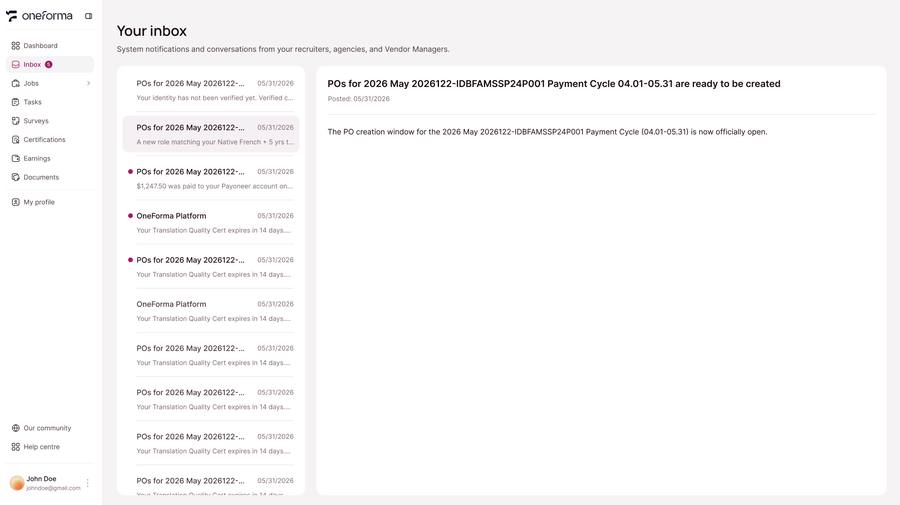
Use Your Inbox
Platform Notifications
Platform-level messages including Job invitations, application status updates, Profile completion reminders, policy changes, and account security alerts.
Message Retention & Actions
Displays Inbox messages from the past six months; older messages are automatically archived. Click a message row to read details; read messages are automatically marked.
Important: Inbox messages are read-only. Use the Help Center contact form when you need a response from support.
Frequently Asked Questions
Why does Matching Opportunities show 0?
Usually because your Profile is missing country or region or language information, or there are no open projects matching your criteria. We recommend adding accurate location and language information to improve matching.
What does Earned This Month include?
Shows cumulative paid earnings for the current month and current PO data. Amounts still In Payment or Disputed are not included.
Will Next Step items disappear after completion?
Yes. Each Next Step item is automatically removed from the section once the corresponding action is completed. For example, after setting up a Passkey, the "Set up Passkey" entry will no longer appear. If the Passkey is later removed, the entry will reappear in Next Steps.
What is the difference between Onboarding and completing your Profile?
Onboarding is a quick guided flow for new users to fill in the most critical matching information (such as country and language). After completing Onboarding, you can further complete your Profile with additional details.
Is identity verification mandatory?
Identity verification is not a mandatory registration step, but many jobs on OneForma require it before you can apply. Verification takes about 3 minutes — we strongly recommend completing it early to unlock more jobs.
Can I reply to Inbox messages?
No. Inbox messages are read-only and cannot be replied to directly. To contact the support team, use the Help Center.