
How to set up Payoneer payment method on OneForma?
Table of Contents:
Having trouble setting up Payoneer as your payment method? Don’t worry—you’ve come to the right place. This guide will walk you through connecting your Payoneer account to OneForma so you can receive payments smoothly and on time.
Payoneer is one of the available payment options for OneForma users. If you work on UHRS jobs, Payoneer must be set as your default payment method. You can configure your payment setup anytime from your Profile section, but it must be completed before you begin any production work.
Before You Begin
Here’s what you need to know:
Payment Method Requirements:
- Users can set up multiple payment methods:
- Payoneer – This is our go-to recommendation. No payment caps, and your money arrives monthly straight to your account.
- PayPal – Works great if you’re earning up to $300 per year. Once you hit that ceiling, you’ll need to switch to something else.
- Tipalti – Our newest option. It works like Payoneer with unlimited payments and some nice perks for smaller amounts.
- Quick heads-up: International transfers and currency exchanges might come with extra fees. Worth checking each provider’s website to see what works best for your situation.
- You must select one as your default payment method
- For UHRS jobs, your default payment method must be Payoneer
- A Payoneer account cannot be linked to more than one OneForma user
Account Status:
- Your Payoneer account must have “Approved” status before you can connect it
- You can use the Refresh button to re-sync your status if it doesn’t update automatically
How to Connect Your Payoneer Account
Follow these steps to set up Payoneer as your payment method:
Step 1: Access Your Profile
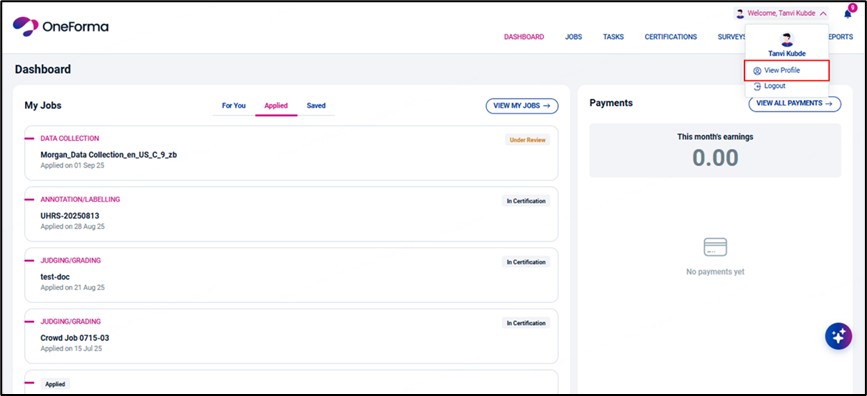
Log in to OneForma using your email and password, then navigate to Profile and click “View Profile”. 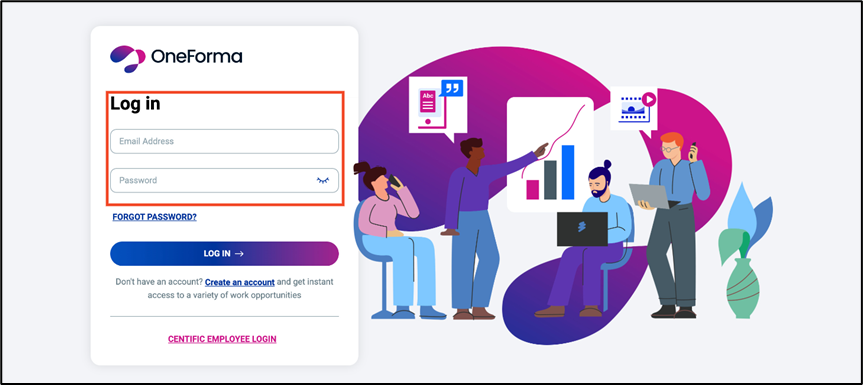
Step 2: Open Payment Settings
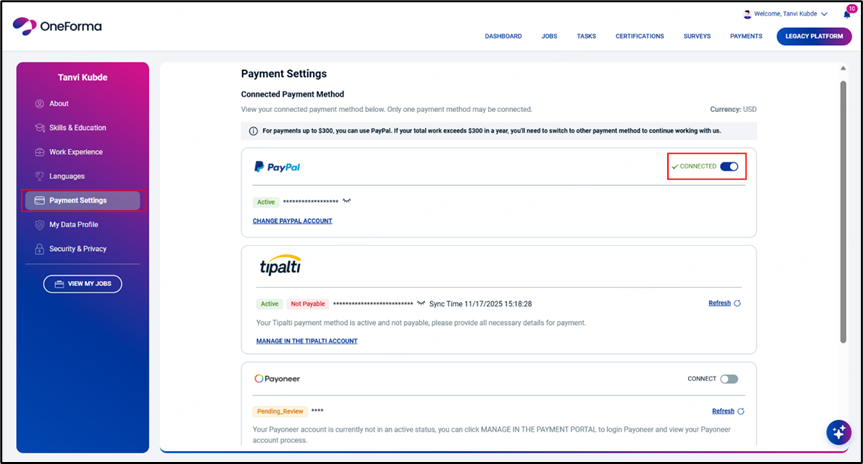
Select “Payment Settings” from your profile menu.
Step 3: Choose Payoneer
Select Payoneer as your payment method. If you want to set it as your default, toggle the “Connect” button to enable it, then click “Connect” to confirm.
Step 4: Connect Your Account
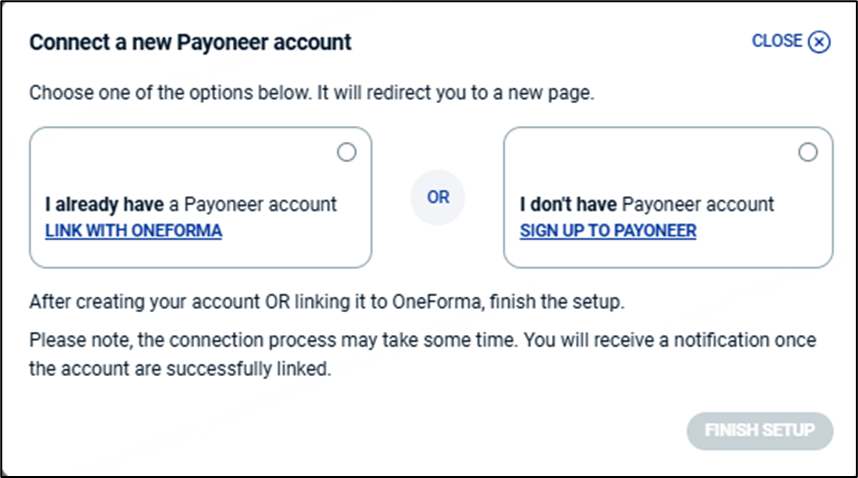
You’ll be asked to connect to a Payoneer account. Choose the option that applies to you:
- If you already have a Payoneer account: Select “I already have a Payoneer account” or click “Link with OneForma”. You’ll be redirected to the Payoneer website to log in with your existing credentials.
- If you don’t have a Payoneer account: Select “I don’t have Payoneer account” or click “Sign Up to Payoneer”. You’ll be redirected to the Payoneer sign-up page, where you can register as an Individual (Freelancer).
Step 5: Complete the Connection
Follow the prompts on the Payoneer website to complete the connection process. Once finished, you’ll be redirected back to OneForma.
Understanding Your Payoneer Setup Status
Your Payoneer account will display one of several status indicators. Here’s what each one means:
Pending: The system is waiting to verify your account details. This is a temporary status while the check is being processed.
Pending_review: Your Payoneer account is under review. Log in to your Payoneer account directly to check the progress and see if any additional information is needed.
Approved: Your Payoneer setup is completed and ready to use. The Connect option will now be enabled, and you can set Payoneer as your payment method.
Active: Your Payoneer account is fully active and can receive payments. This is the ideal status for seamless payment processing.
Inactive: An abnormal situation has occurred. You should contact support for assistance in resolving this issue.
Blacklisted: Your Payoneer account has been blacklisted and cannot be used for payments. Contact support for more information.
BindingConflict: This Payoneer account is already linked to another OneForma user. Remember, each Payoneer account can only be connected to one OneForma account.
Important Notes:
- The “Connect” option is only enabled when your Payoneer status shows as “Approved”
- If your status shows anything other than “Approved,” the payment method won’t be considered valid for payments
- If your status doesn’t update automatically, click the “Refresh” button to re-sync with the Payoneer platform
Need More Help?
If you’re still experiencing issues with your Payoneer setup or have questions about your payment status, OneForma Support is here to help! Our team will get back to you as soon as possible.