
How to Apply for Humus Project Jobs on Mobile
Table of Contents:
The Humus project is a research initiative focused on advancing AI’s ability to recognize and interpret human voice patterns and facial expressions in natural settings. Participants spend roughly 2.5 to 3 hours in structured recording sessions where they’re guided through various tasks: speaking phrases, reading prompts, smiling, turning their head, and looking in different directions. These sessions happen either at designated recording sites or in participants’ own homes, depending on what works best for scheduling. The whole point is to gather diverse, real-world data that can help train spatially aware vision models, capturing how people actually behave in different environments rather than sterile lab conditions. You need to be at least 18, comfortable following English instructions, and willing to sign off on having your audio and video used for research purposes. The data is handled securely and goes strictly toward improving AI performance in everyday scenarios. It is one of those projects where your participation directly feeds into making technology better at understanding the nuances of human communication and expression across different contexts and demographics.
Are you ready to apply for your first Humus data collection job? Don’t worry! The process is straightforward and designed to work seamlessly on your mobile device. This guide will walk you through every step, from scanning your QR code to receiving your job endorsement.
Getting Started by Accessing the Provided Link or the QR Code
Step 1: Scan the QR Code or Click the Link
Your QR code is your gateway to the OneForma platform. Using your mobile device’s camera app, scan the QR code that’s been provided to you. This will take you directly to the login page. If instead, you have a link to log in, click the link to reach the log in page.
Logging Into Your Account
Step 2 A: Tap Log In (Existing User)
After you arrive at the login screen, tap the Log In button to proceed.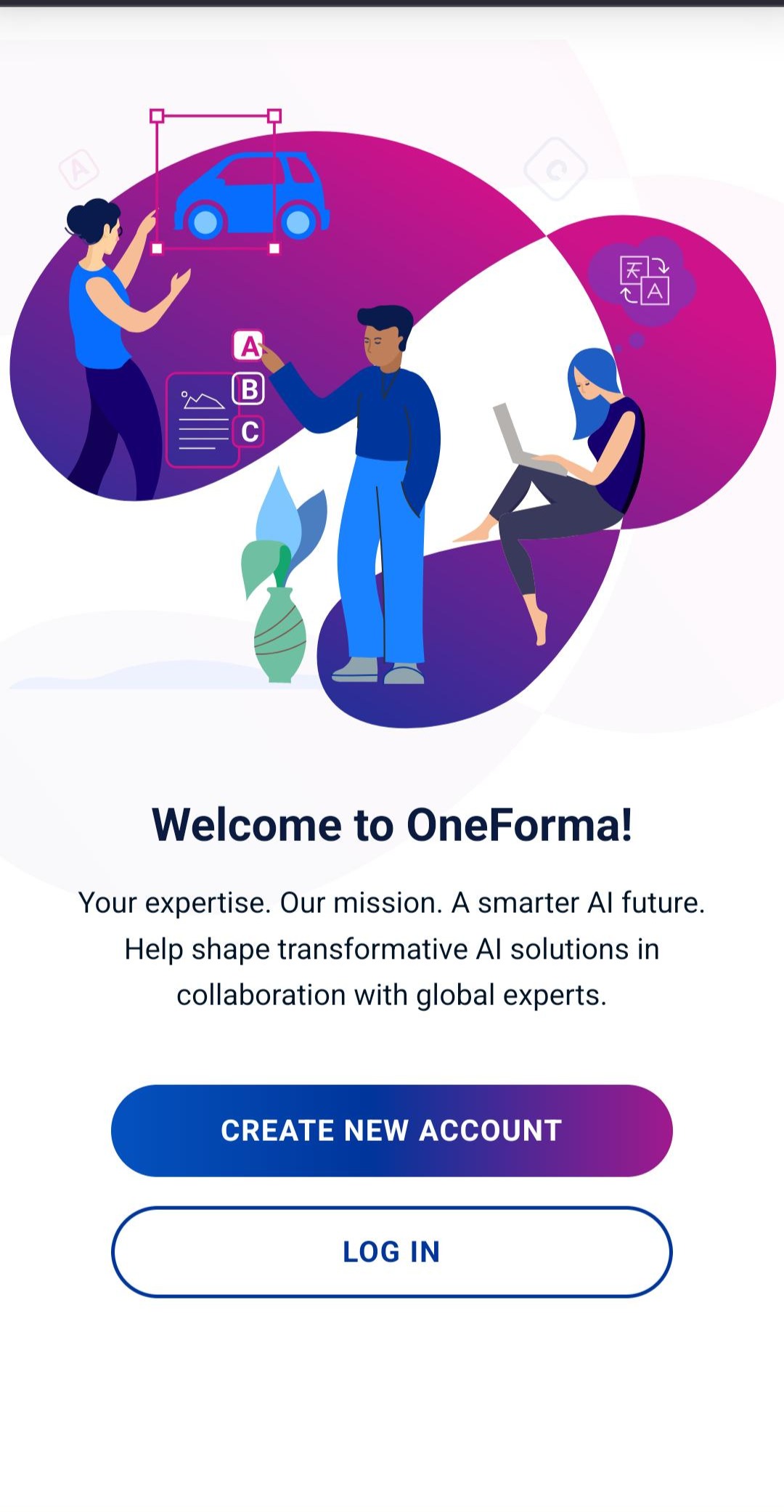
Step 2B: Create an Account
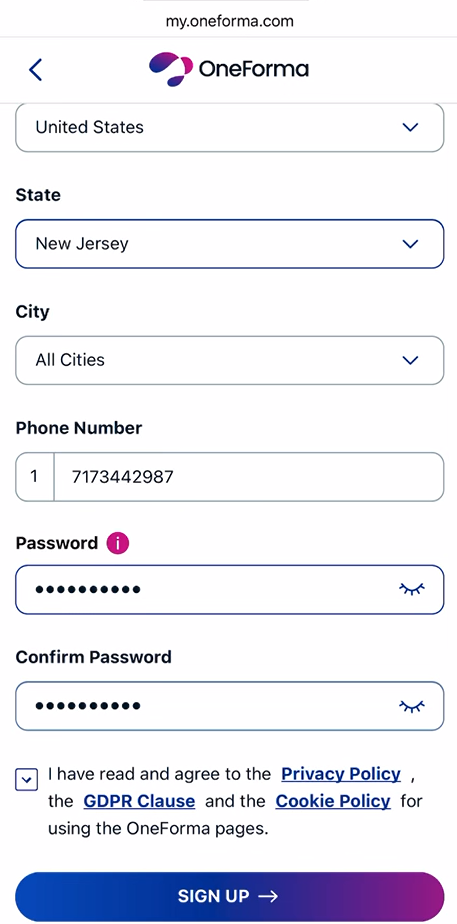
- Tap Create New Account.
- Enter all the details and tap Sign up.
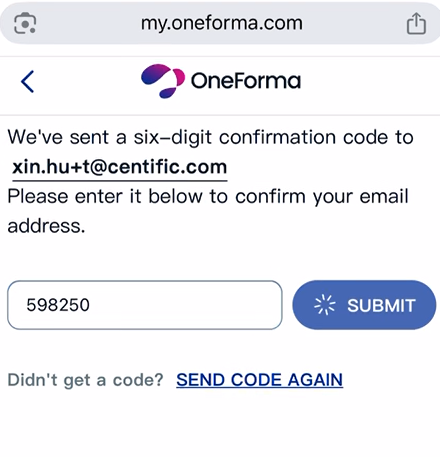
- Enter the code sent to your email and tap Submit.
Step 3: Enter Your Credentials (Only for Existing users. New users skip to step 4.)
Enter the email address and password associated with your OneForma account. Make sure you’ve entered them correctly before moving forward.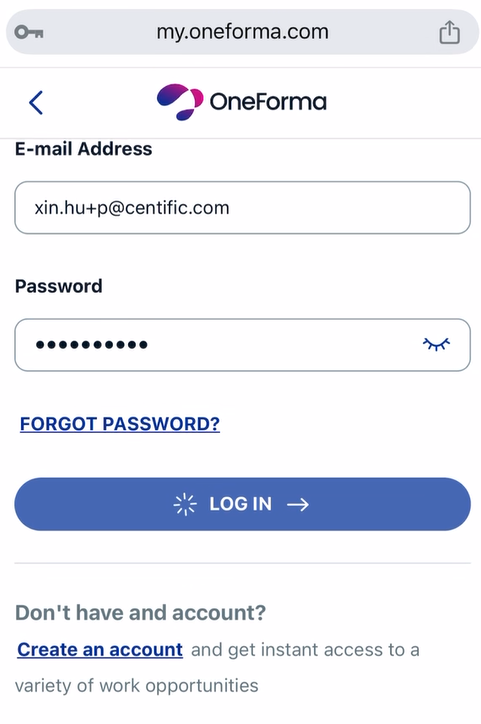
Completing the Project NDA
Step 4: Review and Sign the NDA
You’ve reached the first step of the application process: the Project NDA (Non-Disclosure Agreement).
- Tap the Project NDA document to open it and read through it carefully.
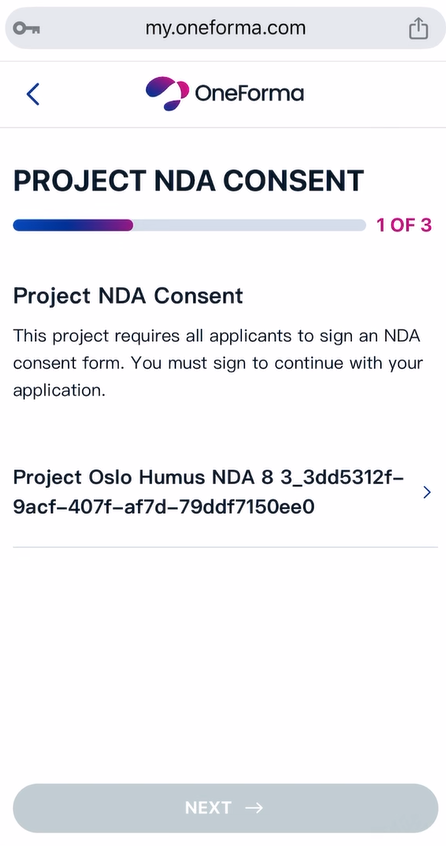
- Scroll to the bottom of the document.
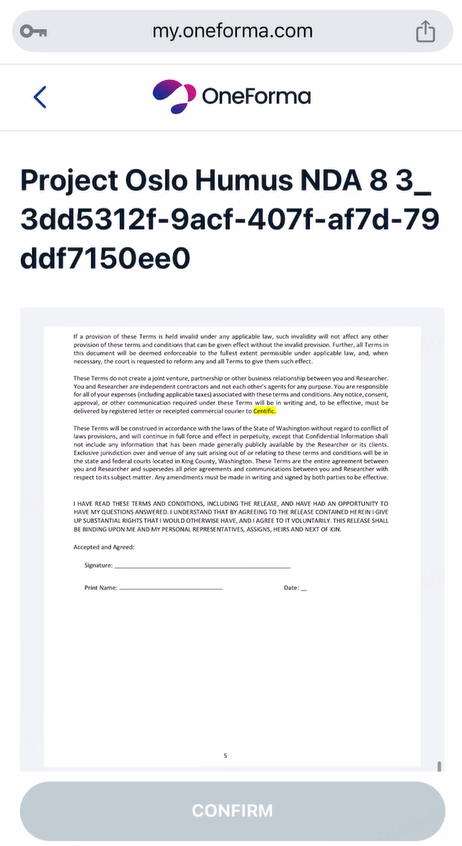
- Tap the Sign Your Name box.
- Enter your e-signature (your digital signature).
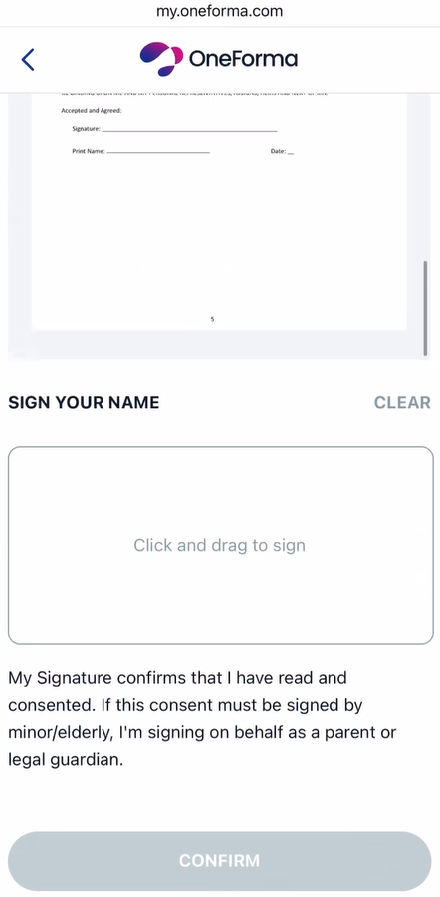
- Tap Done to confirm your signature.
- Tap Confirm to verify you’ve signed.
- Tap Next to move to the next step.
Answering Demographic Questions
Step 5: Complete the Demographics Survey
Next, you’ll answer demographic questions to help us verify your eligibility for the project.
- Begin the Demographics Survey and answer all the questions. Make sure you don’t skip any question. Every question is required.
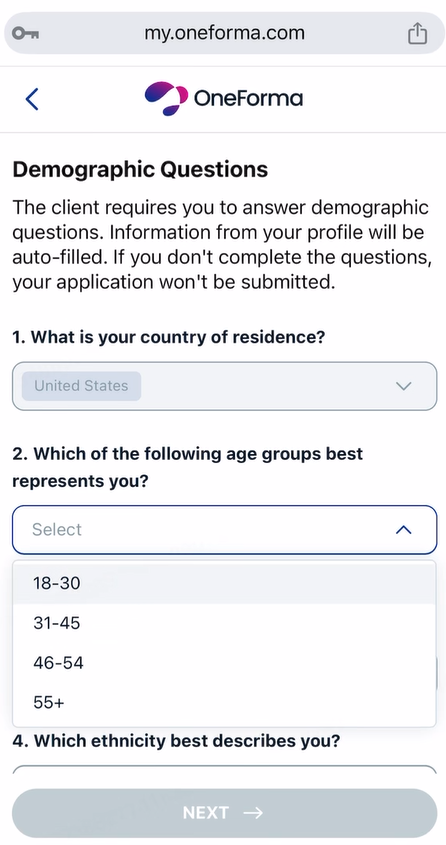
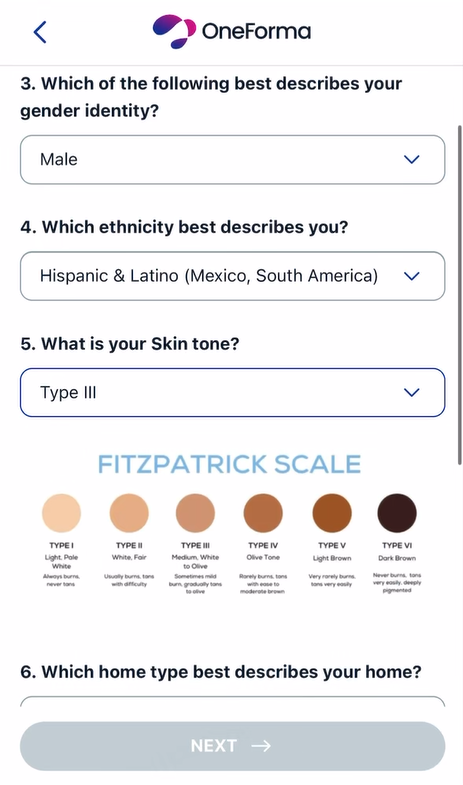
- After you’ve answered all questions, you’ll see a privacy disclosure document. Read it carefully.
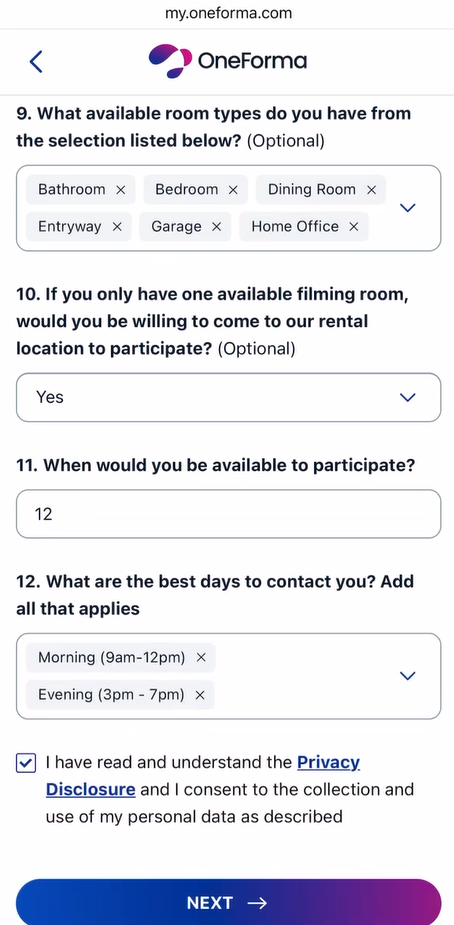
- Select the checkbox to provide your consent.
- Tap Next to proceed.
Signing the Project ICF Consent
Step 6: Review and Sign the ICF Consent
The final step is signing the Project ICF (Informed Consent Form) document.
- Tap the Project ICF Consent document to open it and read through it carefully.
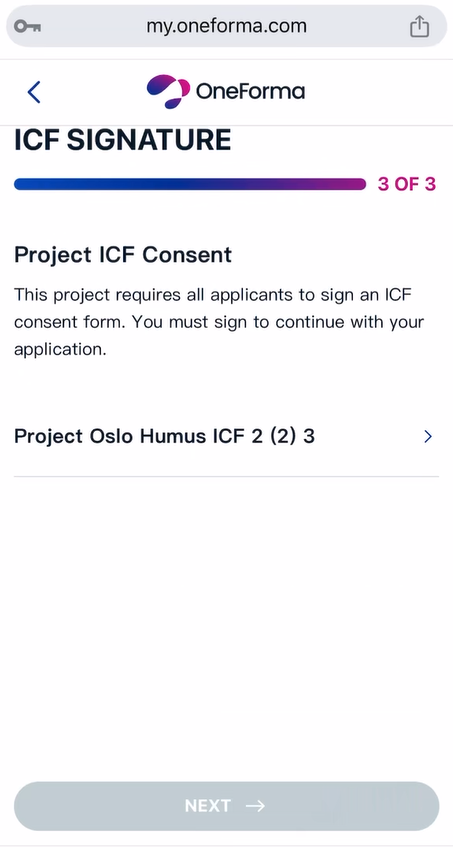
- Scroll to the bottom of the document.
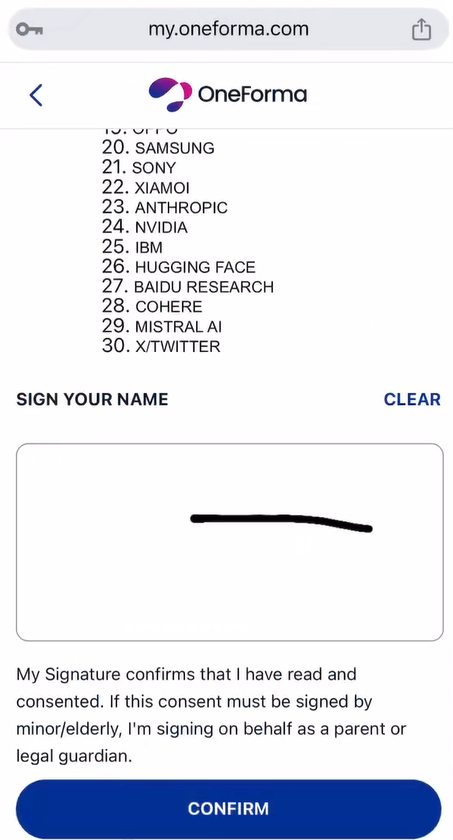
- Tap the Sign Your Name box.
- Enter your e-signature.
- Tap Done to confirm your signature.
- Tap Confirm to verify you’ve signed.
- Tap Next to proceed to the final screen.
Step 7: Finish the Application
You’ve completed all the required steps! Your application is now submitted.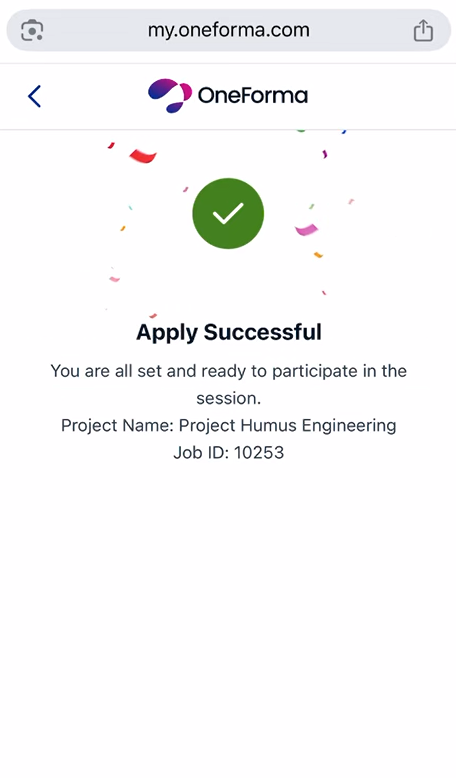
What Happens Next
Step 8: Wait for Endorsement
After you’ve submitted your application, a recruiter will review it. After they’ve approved your application, you’ll receive a notification, and your job status will update to Endorsed on your dashboard.
Keep an eye on your notifications so you don’t miss the update. Once endorsed, you’ll be ready to begin your onsite data collection work!
Troubleshooting: Reset Password
In the event when you forget your password, you can reset it by performing the following steps:
- On the Log in page, tap Forgot Password.
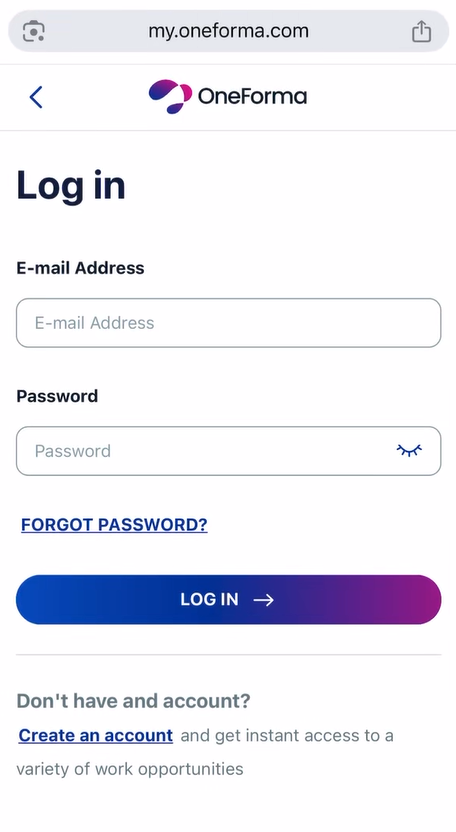
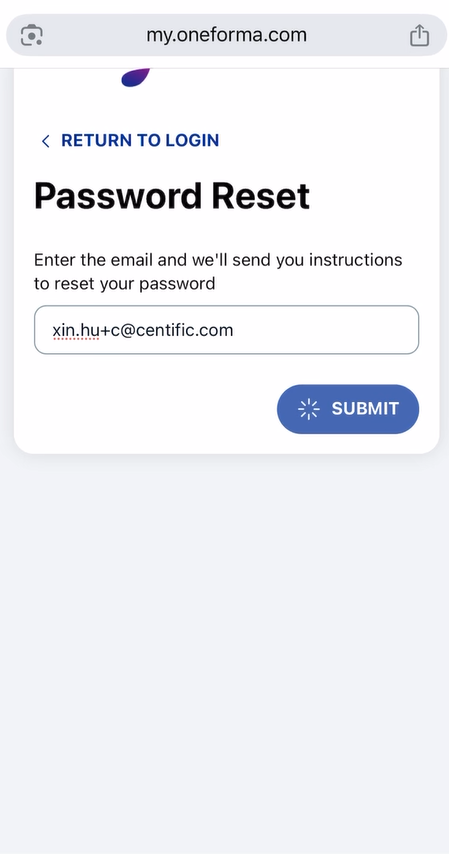
- Enter the email address that you used to create your OneForma account and click Submit.
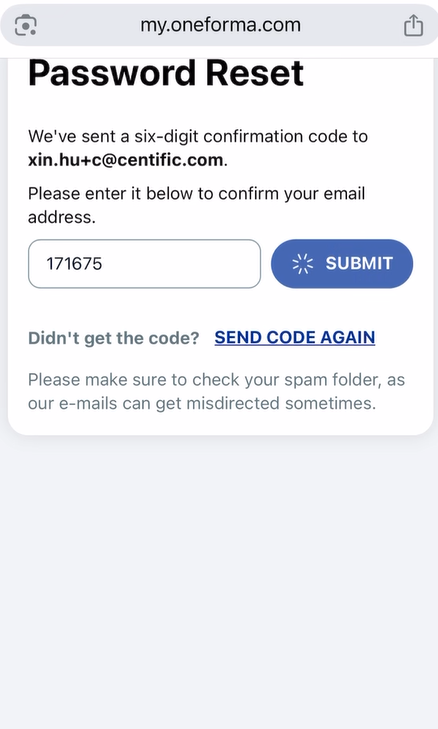
- Enter the six-digit confirmation code sent to your email ID and click Submit.
- Enter the new password, confirm the new password, and click Change Password.
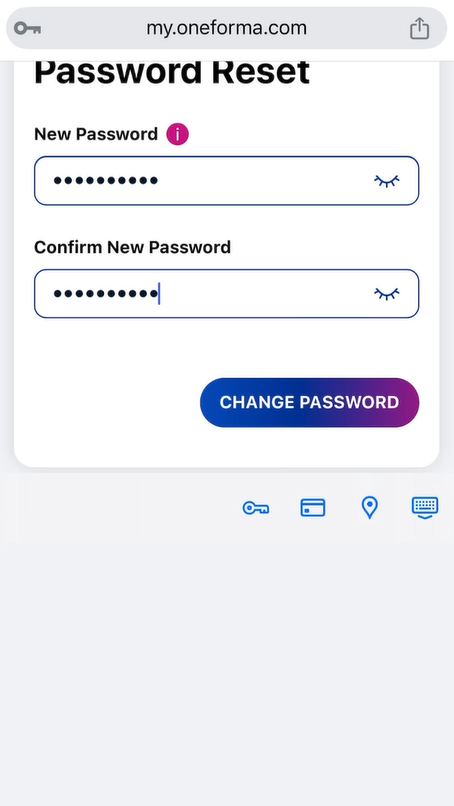
The password gets reset. - Click Go to Login.
- Enter your credentials and continue working on OneForma.
Need More Help?
OneForma Support is here to help! If you’ve run into any issues while applying for a job or have questions about the process, we’re just a message away. Reach out to us, and we’ll get back to you as soon as possible.