
How To Submit A VAT Invoice (China Resources Only)
If you are based out of China, you may be required to submit a VAT invoice for your payment cycle. This guide explains when VAT submission is required and how to complete the process correctly.
When Is VAT Invoice Submission Required?
You must submit a VAT invoice if all of the following conditions are met:
- Your legal entity is China
- Your bank transfer nationality is China
- The Jiangsu entity invoice amount exceeds 1000 RMB
Note: If the invoice amount is 1000 RMB or less, VAT invoice submission is not required. - When resubmitting a Payment Failed invoice (refer Payment Failed and Resubmit), the system checks whether a VAT invoice is required. If a valid VAT invoice has already been uploaded for the current month, you can continue without uploading it again. Otherwise, you must upload a VAT invoice before the invoice can be resubmitted.
- If the current payment batch contains multiple legal entities, VAT information is required only for the legal entities that exceed the VAT threshold.
Submit And Upload VAT Invoice
- Go to the Payments in the top menu.
- Go to Ready for Payment list.
- To open the invoice, click the Invoice number and verify its details.
- Select the checkbox next to one or more POs, then click Submit for Payment.
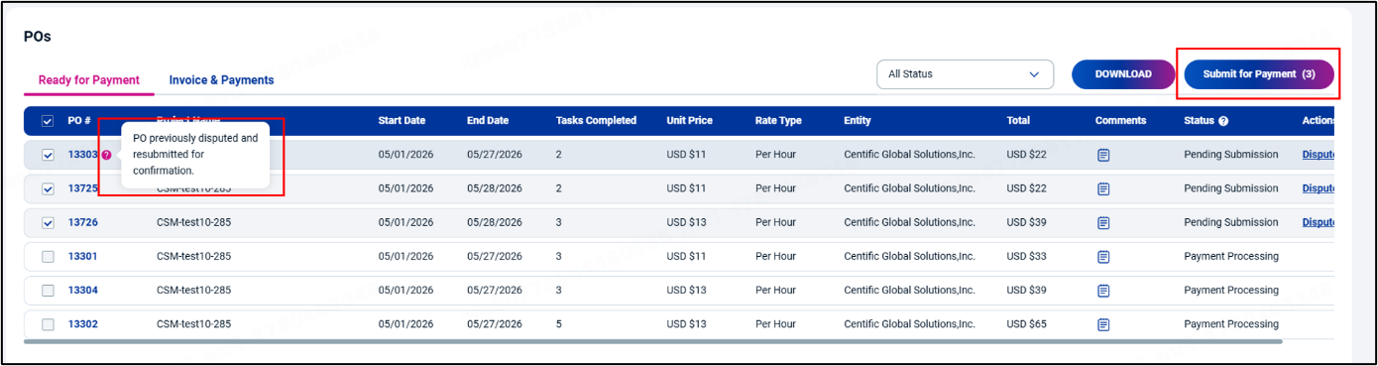
- The Invoice Submission pop-up window will open. Review the invoice amount.
Note: If your invoice includes both Shanghai and Jiangsu entities:
Shanghai entity invoices do NOT require a VAT invoice upload.
Only the Jiangsu entity invoice amount will be calculated and validated for VAT invoice submission.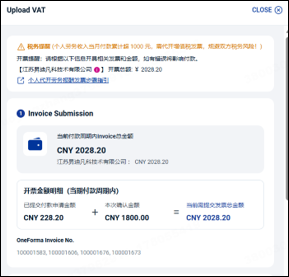
- In the Upload VAT Invoice section, the uploaded VAT invoice number and VAT invoice amount will be displayed at the top of this section after uploading.
- Click Upload VAT Invoice to select a file.
- Click Choose file, select a relevant PDF file from your system and click Open.
Note: You can upload a maximum of 10 PDF files.
VAT Invoice Verification And Submission
- After uploading, the system will automatically verify your invoice using OCR.
If verification fails, an error message will appear and you must re-upload the correct file.
If verification passes, your VAT invoice will be uploaded successfully. - If the Username or Document ID in your bank transfer configuration does not match the Username or Document ID on the uploaded VAT document, an error message will be displayed. You can choose Cancel or Replace.
Note: If you click Replace, the Username or Document ID in your profile will be updated with details from the VAT document.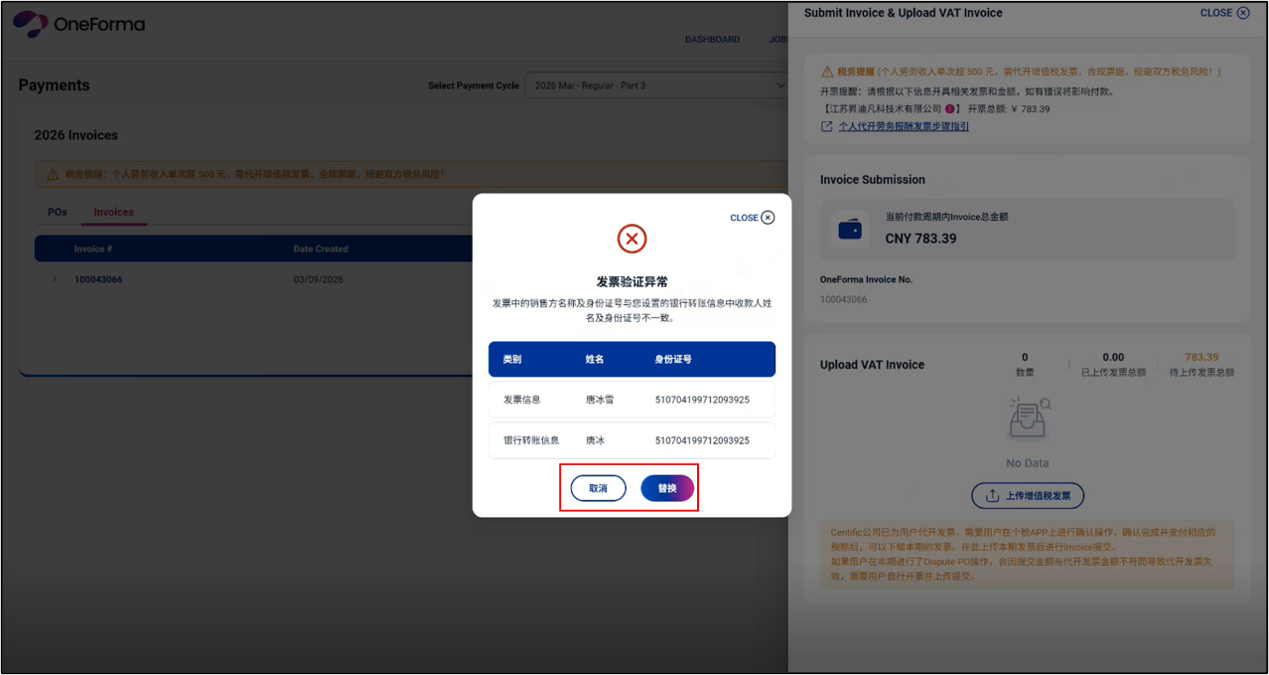
- To view the successfully uploaded VAT Invoice, click View. If you want to delete the uploaded VAT invoice, click Delete.
Note: The seller company name on the VAT invoice must exactly match the company name specified in the bank transfer details defined in the payment settings. - Click Submit.
Note: The total VAT invoice amount must exactly match the invoice amount.
If the amounts match, the submission is successful.|
If the amount does not match, you will receive an error notification, and the submission will be blocked until corrected.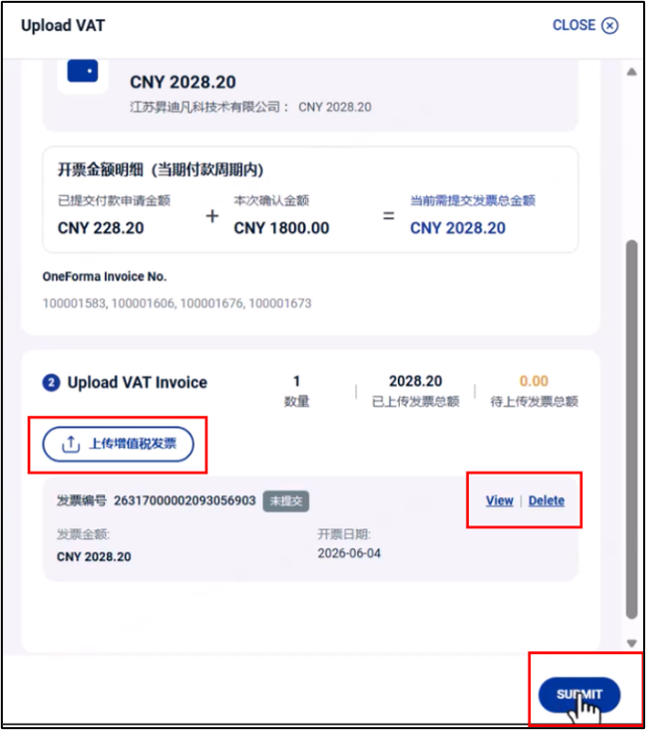
Track Payment Status
You can track the status of your invoice by doing the following:
- Go to the Payments module.
- Click Invoices and Payments tab.
- Check the Status column.
Still Need Help?
If the steps above don’t resolve your issue, please contact OneForma Support. Our team will review your case and assist you as soon as possible.
Was this article helpful?
Let us know so we can improve our docs.