
How to Submit a VAT Invoice (China Resources Only)
Table of Contents:
If you are based out of China, you may be required to submit a VAT invoice for your payment cycle. This guide explains when VAT submission is required and how to complete the process correctly.
When Is VAT Invoice Submission Required?
You must submit a VAT invoice if all of the following conditions are met:
- Your legal entity is China
- Your bank transfer nationality is China
- You are submitting within the current payment cycle, from PSAPM Approval End Time to Invoice Submission End Time
- The Jiangsu entity invoice amount exceeds ¥500 RMB
Note: If the invoice amount is ¥500 RMB or less, VAT invoice submission is not required.
Step 1: Access Your Invoice
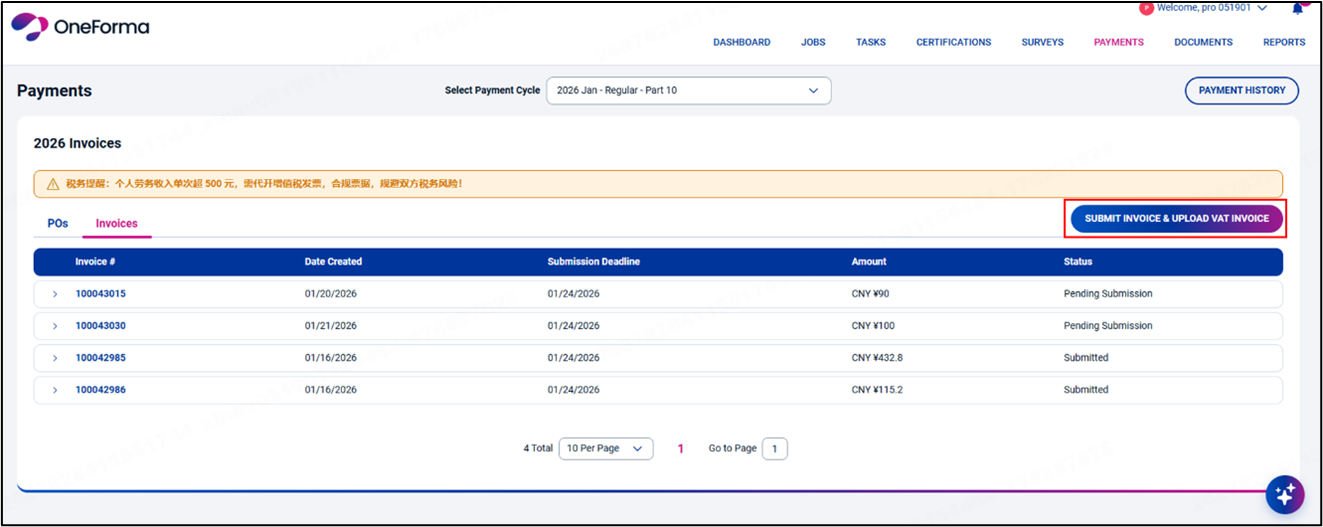
- Go to the Payments page.
- Select the correct payment cycle.
- Open the Invoices tab.
- Click the Invoice number to review the details.
- Click Submit Invoice & Upload VAT Invoice.
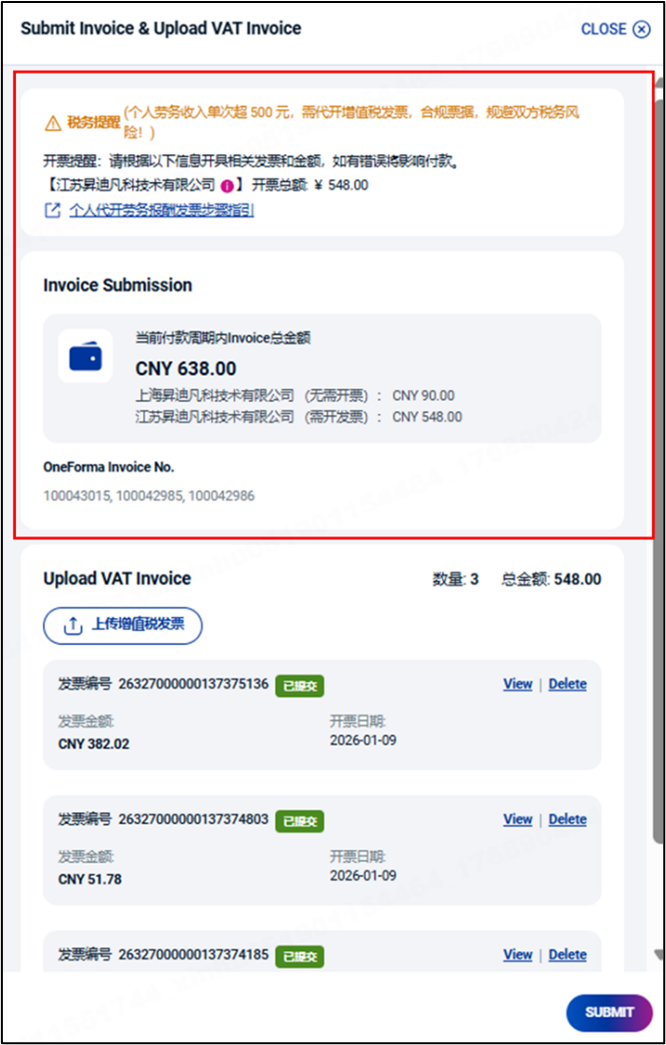
- A submission window will appear showing:
- A VAT invoice notice at the top
- The invoice amount for the current payment cycle
Note: If your invoice includes both Shanghai and Jiangsu entities:
- Shanghai entity invoices do NOT require a VAT invoice upload
- Only the Jiangsu entity invoice amount will be calculated and validated for VAT invoice submission.
Step 2: Upload Your VAT Invoice
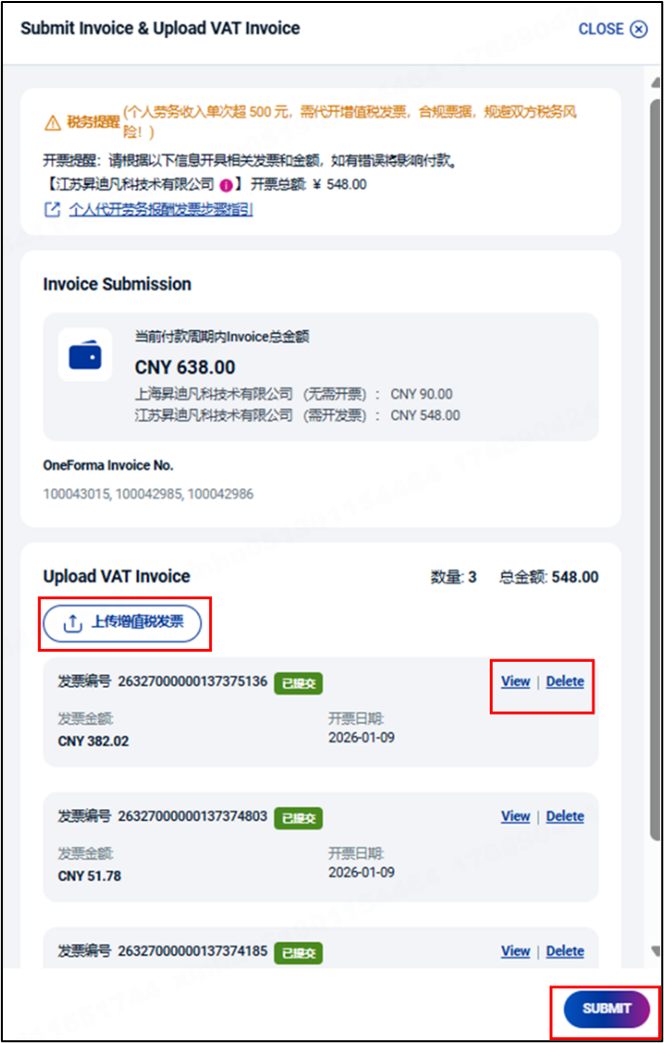
- Click Upload VAT Invoice.
- Select Choose File.
- Upload the relevant PDF file from your device.
Important:
- Only PDF files are supported.
- You can upload up to 10 PDF files.
- The seller company name on the VAT invoice must exactly match the company name in your payment settings.
Once uploaded, the VAT invoice number and amount will appear at the top of the upload section.
VAT Invoice Verification
After uploading, the system will automatically verify your invoice using OCR.
- If verification fails, an error message will appear and you must re-upload the correct file.
- If verification passes, your VAT invoice will be uploaded successfully.
You can:
- Click View to review the uploaded VAT invoice.
- Click Delete to remove it during the submission window.
Note: You can only upload or delete VAT invoices during the invoice submission window. After the window closes, invoices become view-only.
Final Submission
After successful verification:
- Click Submit to complete the invoice submission.
The total VAT invoice amount must exactly match the invoice amount for the payment cycle.
- If the amounts match, submission is successful.
- If the amount does not match, you will receive an error notification, and the submission will be blocked until corrected.
How to View a Submitted VAT Invoice
Once the invoice submission window has closed:
- Go to the Invoices tab.
- Click View VAT Invoice.
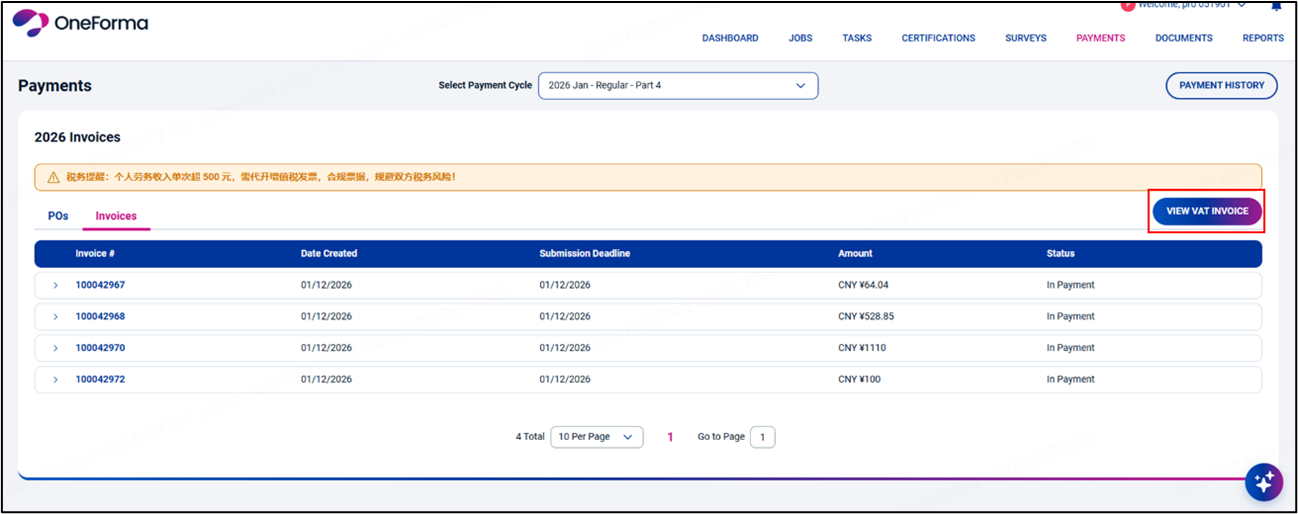
- Locate the invoice and click View.
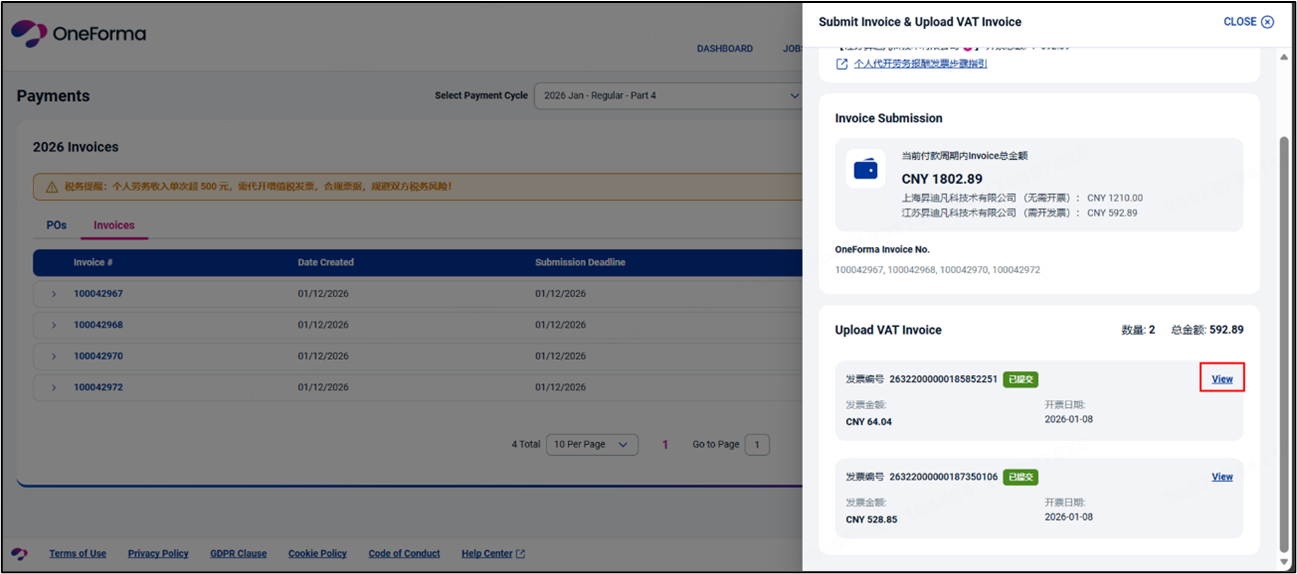
At this stage, invoices cannot be edited or deleted.
Still Need Help?
If the steps above don’t resolve your issue, please contact OneForma Support. Our team will review your case and assist you as soon as possible.