
How to set up PayPal as your OneForma payment method
Table of Contents:
Before you can get paid for your work on OneForma, you need to set up your payment method. This one-time process helps ensure that your earnings go to the right place, securely and on time.
PayPal is one of the available payment options for Crowd users on OneForma. You can configure your payment setup anytime from your Profile section, but it must be completed before you begin any production work.
OneForma gives you three ways to get paid:
Payoneer – This is our go-to recommendation. No payment caps, and your money arrives monthly straight to your account.
PayPal – Works great if you’re earning up to $300 per year. Once you hit that ceiling, you’ll need to switch to something else.
Tipalti – Our newest option. It works like Payoneer with unlimited payments and some nice perks for smaller amounts.
Quick heads-up: International transfers and currency exchanges might come with extra fees. Worth checking each provider’s website to see what works best for your situation.
Jobs on OneForma require your payment information to be confirmed
Your payment setup must be completed before you can start working on any tasks. Once you’re approved and complete assignments, OneForma generates invoices and sends payment based on this setup.
- Important: If your earnings for the month are less than $10 USD, no invoice will be generated until your balance reaches that threshold.
What will you need before you begin?
- A valid OneForma account
- Your PayPal account information
- The appropriate tax form (W-9 for US residents, W-8BEN for non-US residents)
- A few minutes to complete and upload your tax documentation
Tip: If you don’t have a W-8BEN tax form, click the link that says “Download a blank W-8BEN form” in the payment information tab of your profile to get one.
Here’s what you need to know about PayPal payments:
Payment Limits and Options:
- PayPal can be used for payments up to $300 per year
- For amounts over $300 per year, you’ll need to use Tipalti instead
- Crowd users can set up multiple payment methods (both PayPal and Payoneer)
- You can select one as your default payment method and change it at any time
- A PayPal account cannot be linked to more than one OneForma user
Step-by-step guide
- Access Your Profile
Log in to OneForma using your email and password, then navigate to Profile and click View Profile.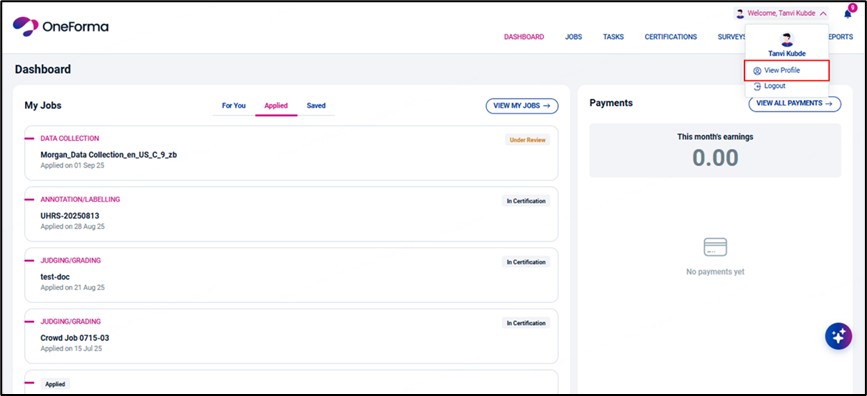
- Open Payment Settings
Select Payment Settings from your profile menu.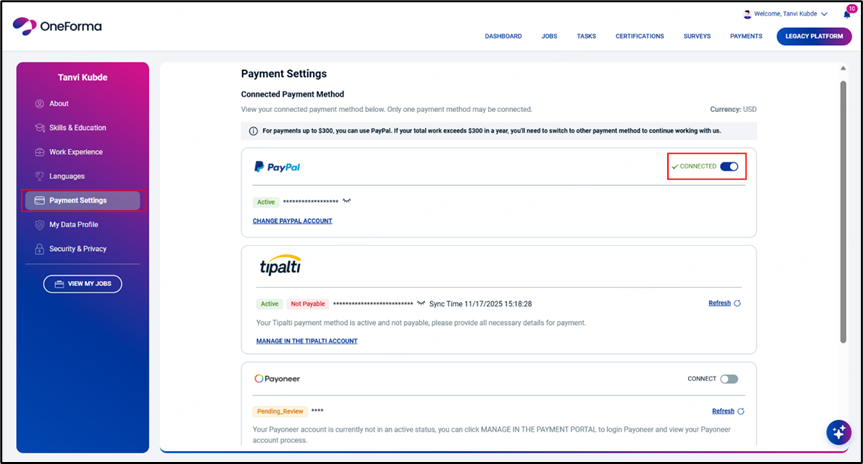
- Choose PayPal
Select PayPal as your payment method. Toggle the Connect button to enable it, then click Connect to confirm.
- Enter Your Account Details
You’ll need to provide the following information: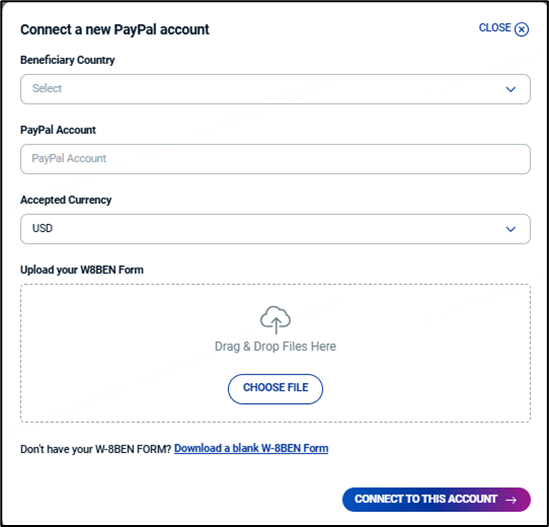
- Beneficiary Country: Select the country where your PayPal account is registered
- Account Name: Enter the name associated with your PayPal account
- Accepted Currency: Choose the currency you want to receive payments
- Download and Complete Your Tax Form
Depending on your selected Beneficiary Country, you’ll need to download and complete the appropriate tax form:
Note: Make sure all information on the tax form is accurate and matches your PayPal account details.- If you selected United States: Download the W-9 form, fill it out completely, and click “Choose File” to upload it.
- If you selected any other country: Download the W-8BEN form, fill it out completely, and click “Choose File” to upload it.
- Connect to Your Account
Once you’ve uploaded your completed tax form, click Connect to this Account to finalize the setup. Your PayPal payment method is now configured and ready to use!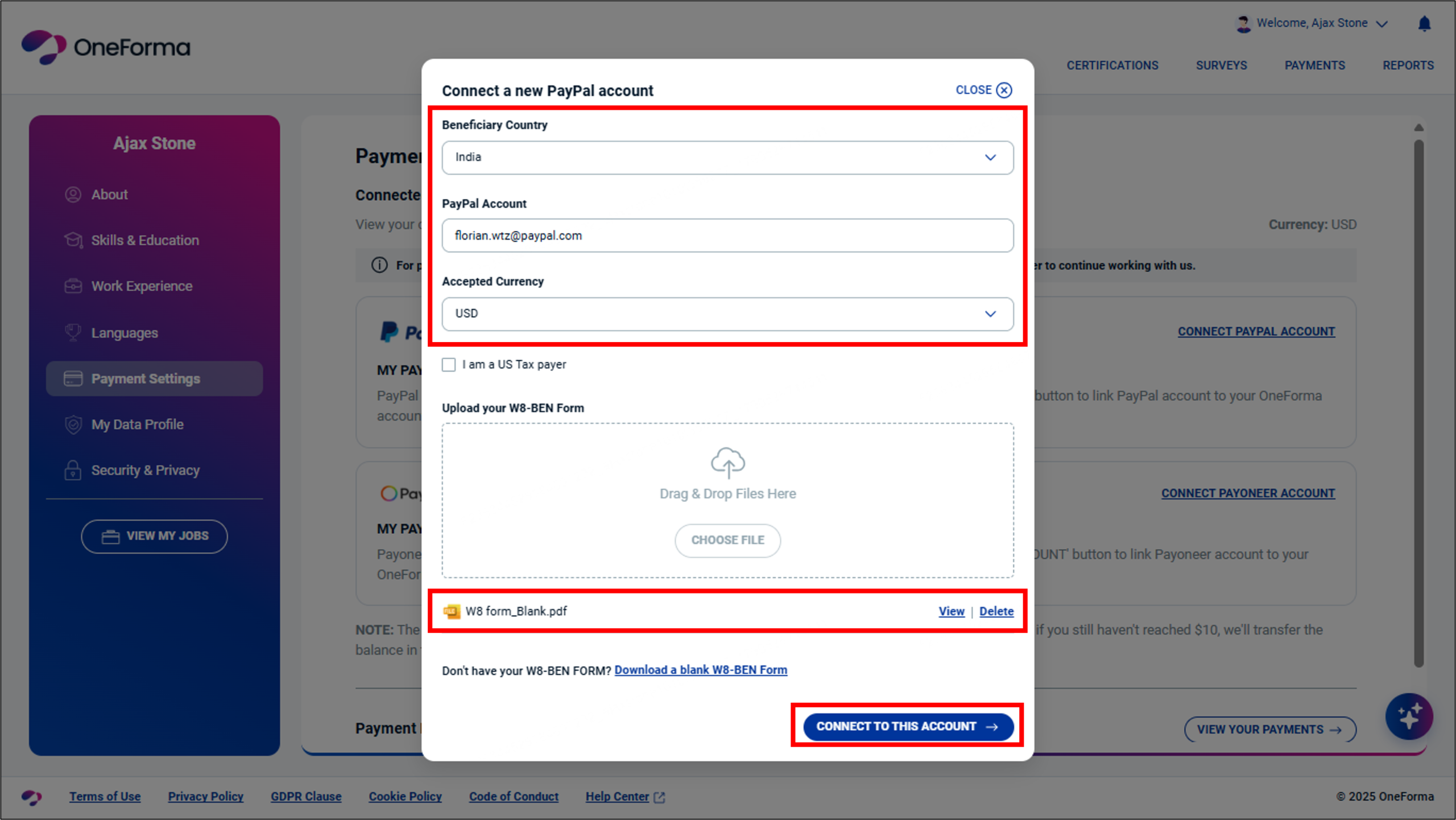
Understanding Tax Form Requirements
Tax forms are required by law for payment processing. Here’s what you need to know:
W-9 Form (US Residents):
- Required for all beneficiaries in the United States
- Provides your taxpayer identification number and certification
- Must be completed accurately to avoid payment delays
W-8BEN Form (Non-US Residents):
- Required for all beneficiaries outside the United States
- Certifies your foreign status and tax treaty benefits (if applicable)
- Ensures proper tax withholding on your payments
Need to update or change payment information?
You can return to the payment information page detailed above at any time. Whether you need to change countries, switch payment platforms, or otherwise update your payment information, follow the same steps outlined above.
Need more help?
If you’re unsure about which form to upload, can’t connect your payment metho